Members
Manage who has access to your organization and their roles.
Control who has access to your organization and what they can do.
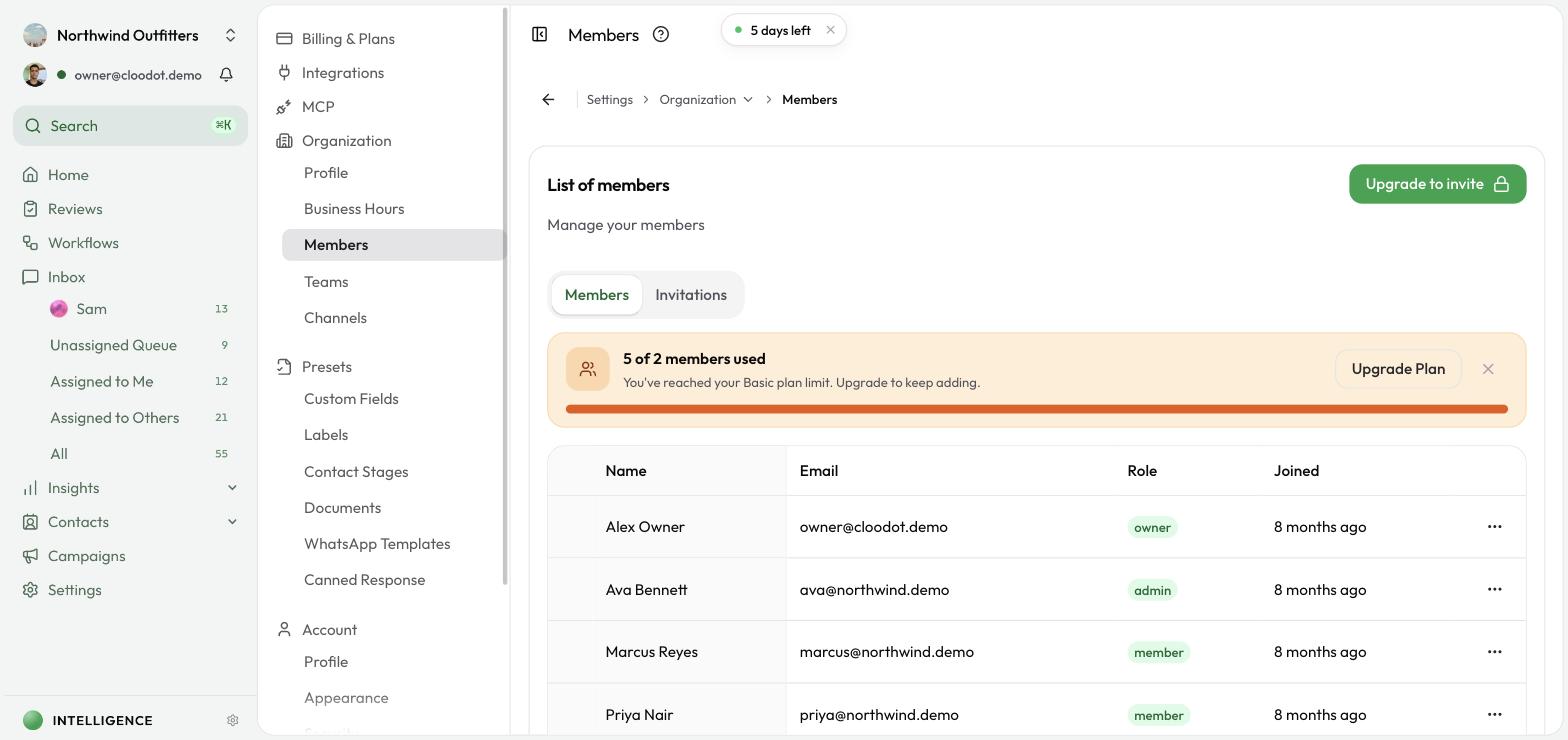
Open the Members page
Go to Settings → Organization → Members. You'll see tabs for Members and Invitations.
Current members
The Members tab shows each active member with:
- Name & Email — display name and email
- Role — Owner, Admin, or Member
- Joined — the date they joined
- Actions — menu with management options
Available actions
From the Actions menu on each row:
- Transfer ownership — hand the owner role to another member (owners only)
- Remove — remove the member from the organization (if your role allows it)
- Leave organization — leave yourself (only on your own row)
Roles are assigned at invite time; there's no separate change-role action afterwards.
Pending invitations
The Invitations tab lists invites that have been sent but not yet accepted.
- See who was invited and when.
- Select pending invites and click Remove in the action bar to cancel invites sent by mistake or no longer needed.
Invite a member
- Click Invite member.
- In the dialog:
- Email address — the person's email.
- Role — pick a role (e.g. Member or Admin).
- Click Send Invite.
The invitee gets an email with a join link. Once they accept, they show up in the Members tab with the assigned role.
Roles and permissions
- Owner — full access to every setting, including billing. Usually one owner per organization.
- Admin — can manage most settings and members, but not billing.
- Member — focused on day-to-day operations.
Note — if you're not sure what your role can do, ask your organization owner.
Manage access well
- Review the member list regularly to confirm access is still needed.
- Match each member's role to their actual responsibilities.
- Only invite people you trust.
- Remove members who no longer need access.