Campaigns
Send WhatsApp marketing messages to your contacts at scale.
Send WhatsApp messages to your customers proactively — sale announcements, updates, re-engagement. Each campaign uses a WhatsApp template pre-approved by Meta, so set those up first if you haven't.
Audience options
Send a campaign to:
- A segment — A group of contacts you've defined (like "VIP customers" or "Leads from January")
- A CSV file — A list you upload with phone numbers and any personalization data
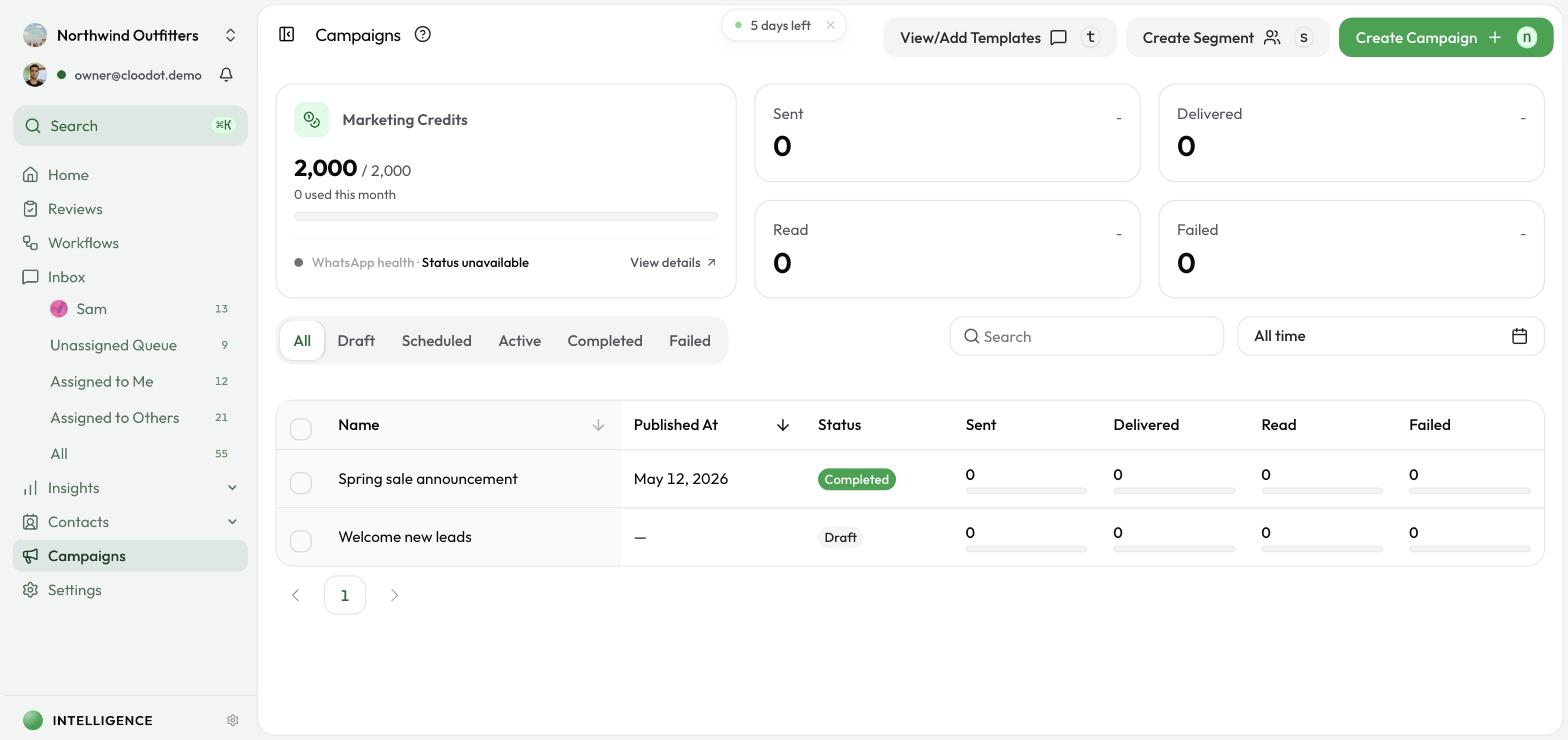
What's on the Campaigns page
- Your campaigns — Every campaign with its status and metrics
- Message quota — Marketing messages remaining
- WhatsApp health status — Whether your Business Account is in good standing
- Quick actions — Create campaigns, manage templates, create segments
Campaign statuses
- Draft — Saved but not sent (still editable)
- Scheduled — Set to go out at a specific time
- Pending — Queued and about to start
- Active — Currently sending
- Paused — Paused by you; can be resumed
- Completed — All done
- Cancelled — Stopped before it finished
Creating a campaign
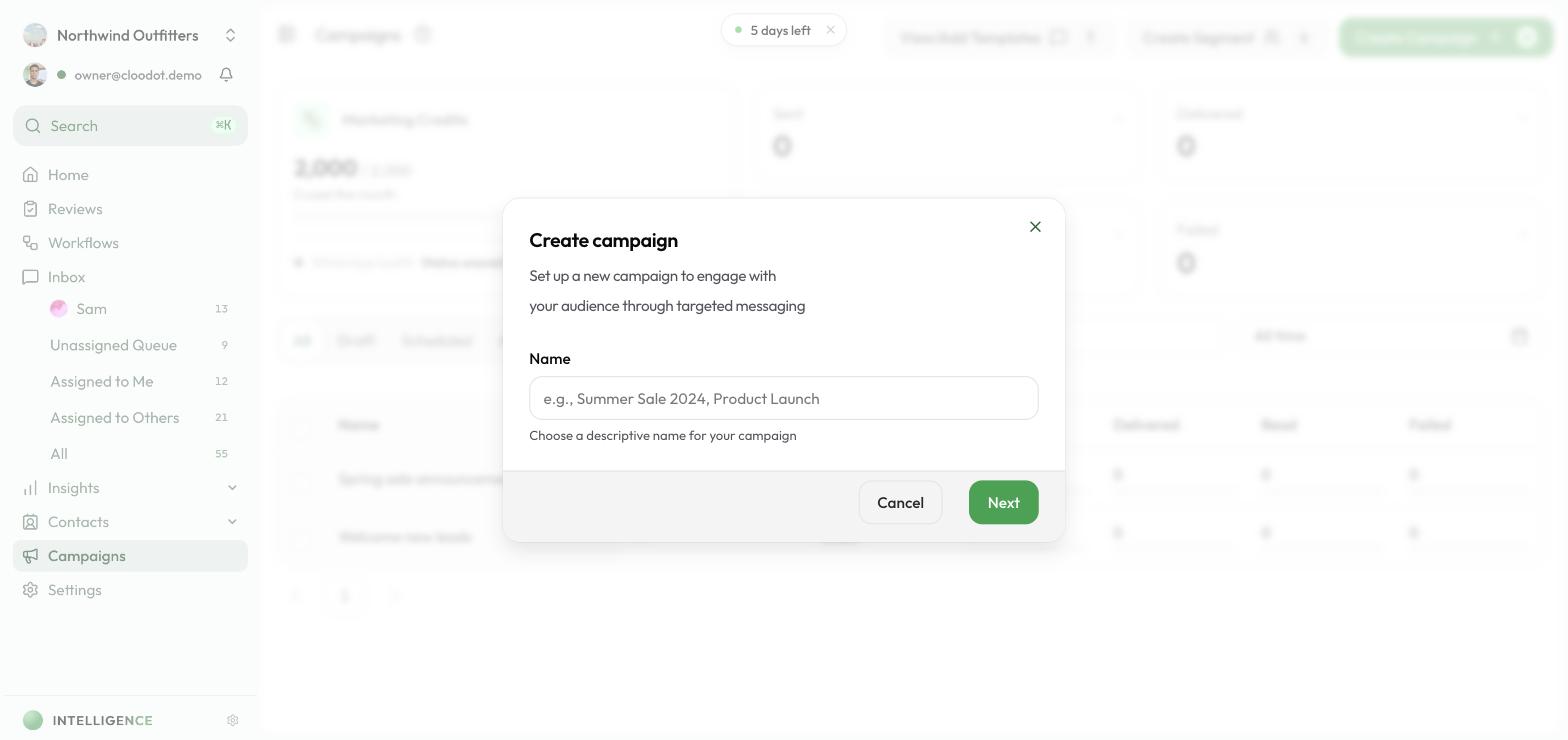
Click Create Campaign to start. It's a 4-step process.
1. Pick your channel and template
Choose the WhatsApp channel to send from (if you have more than one), then pick the template. Search by name or filter by type.
Click a template to preview header, body, and buttons.
Templates with a WhatsApp Flow button work like any other — recipients tap the button to fill the form right inside WhatsApp, submissions land in the Inbox, and the WhatsApp Flow Submitted trigger can automate on the answers.
2. Choose who receives it
Two options:
Use a segment Pick from your existing segments. The contact count shows up next to each one.
Upload a CSV
Drop in a CSV file with up to 50,000 contacts. The file needs a phone number column — Cloodot detects columns named phone, mobile, tel, telephone, or similar variations. Phone numbers must be in international format (for example: +14155551234).
Include extra columns like name, email, or any custom data for personalization. Column matching is case-insensitive.
Cloodot validates the file and flags missing data, invalid phone numbers, and duplicates.
3. Set up personalization
If your template has variables (like {{name}} or {{order_id}}), configure each one:
- Static value — Same for everyone (like your store name)
- CSV column — Pull from uploaded data
- Custom field — Use data stored on the contact
The more relevant the message, the better it performs.
4. Review and send
Before you publish:
- Send a test — Click Send Sample Message to see exactly how it'll look
- Review the summary — Template, contacts, variables
- Check for issues — Cloodot flags anything that looks off
When you're ready:
- Save as Draft — Come back to it later
- Publish — Start sending right away
Managing your campaigns
The campaign list shows each campaign's name, status, and performance at a glance.
Find campaigns:
- Filter by status (All, Draft, Active, Completed, etc.)
- Search by name
- Sort by date or name
Actions:
- Click a draft to keep editing
- Click a published campaign to see analytics
- Pause, resume, or cancel active campaigns
- Archive campaigns you're finished with
- Delete drafts you don't need
Archiving campaigns
Archiving clears a finished campaign out of your list without destroying it — the campaign keeps its status, stats, and full report.
- Archive — Select campaigns and click Archive, or use the Archive button on a campaign's analytics page. Just archived something by mistake? Hit Undo in the toast.
- Find archived campaigns — Switch to the Archived tab.
- Restore — Select archived campaigns and click Restore. They return to the list exactly where they left off.
Campaigns that are scheduled or currently sending can't be archived — cancel the schedule, or wait for the send to finish. Publishing an archived campaign again automatically restores it.
Archiving is different from deleting: deleting is permanent and only available for drafts and failed campaigns, while archiving works on any settled campaign and is always reversible.
Campaign analytics
Click any published campaign to see how it's performing.
The numbers
- Total Contacts — How many people you're reaching
- Sent — Messages that left successfully
- Delivered — Messages that arrived
- Read — Messages that were opened
- Clicked — Button clicks (if your template has buttons)
- Failed — Messages that didn't make it
Stats refresh every 5 seconds while a campaign is active.
For the same figures across all your campaigns — plus a sparkline of each one's shape over time — stay on the Campaigns list: the tiles at the top total whatever your filters match, or just the campaigns you tick.
Engagement timing
The clicks histogram shows when people are tapping buttons — useful for spotting timing patterns.
Contact details
See the delivery status for each contact. If messages failed, download a CSV of failed contacts to troubleshoot (common causes: invalid phone numbers, opted-out contacts).
Conversations the campaign started
Delivery tells you the message arrived; it doesn't tell you how it landed. The Overview tab ends with the labels and sentiment of the conversations this campaign produced — what people came back about, and in what mood.
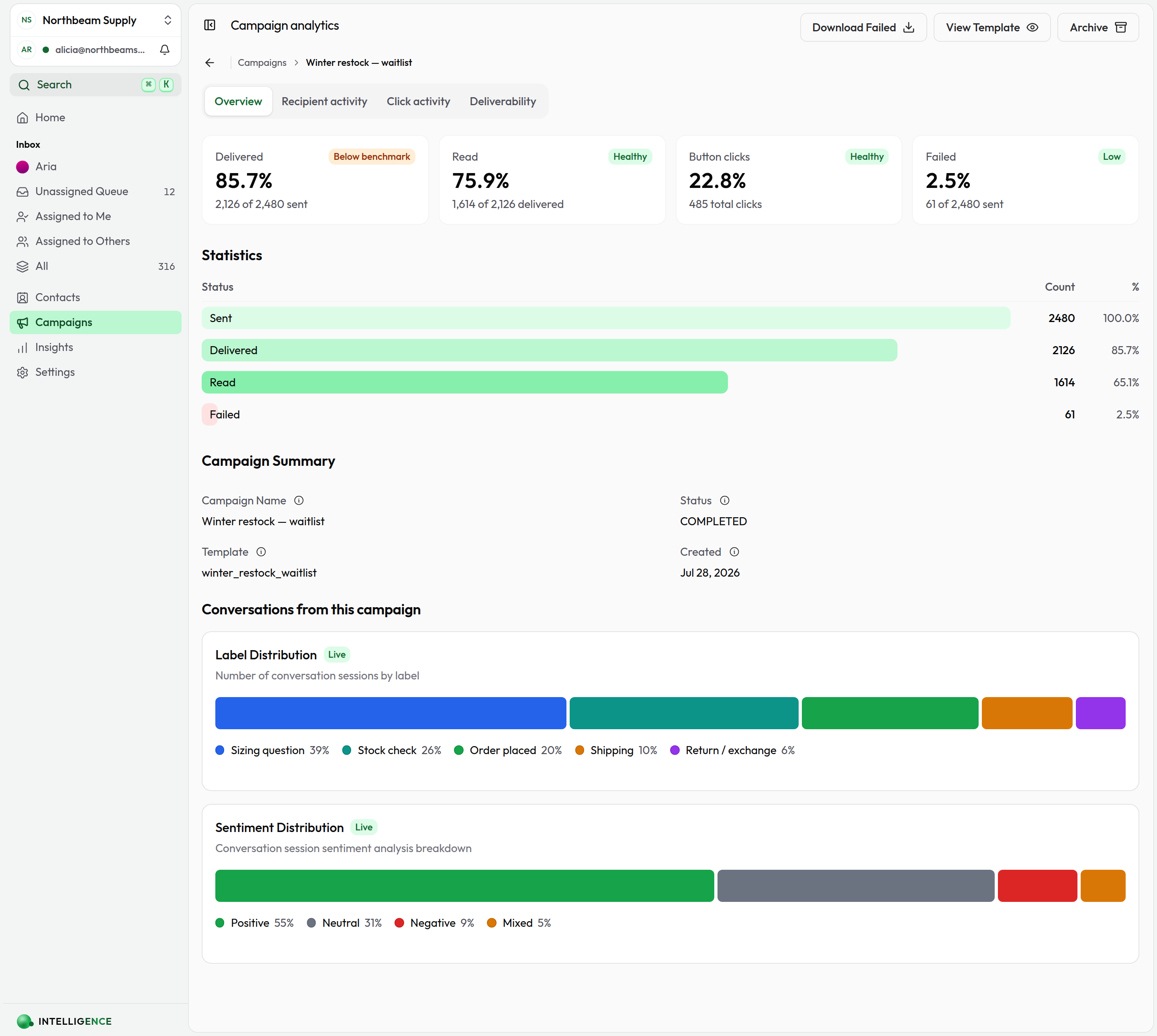
Read it next to the delivery numbers above: a campaign with excellent delivery and sharply negative sentiment reached everybody and annoyed them, which no delivery figure on its own will ever tell you.
For labels and sentiment across every conversation rather than one campaign's, use Conversation Insights.
Tips for better campaigns
- Test first — Send yourself a sample before publishing
- Use segments — Targeted messages outperform blasts to everyone
- Personalize — Names and relevant details make messages feel less spammy
- Watch your metrics — Delivery and engagement show what's working
- Handle failures — Download the failed list and clean up your data
- Stay within your quota — Keep an eye on remaining messages
- Get templates approved early — Make sure yours are approved before using them
Troubleshooting
Campaign won't send
Check whether:
- Your WhatsApp channel is connected and active
- The template is approved (not pending or rejected)
- You have messages left in your quota
Lots of failures
Download the failed contacts CSV — each row shows the error. Common causes: phone numbers not in international format (must start with country code, for example +1...), opted-out contacts, rate limits.
Variables not filling in
Match CSV column names to template variables (case-insensitive). For custom fields, make sure the data exists on the contacts.
Template problems
Templates must be approved by WhatsApp first. Check the status in your WhatsApp Templates settings.
Related topics
- Segments — Target the right people
- WhatsApp Templates — Create and manage templates
- WhatsApp Flows — Send native in-chat forms and automate on the answers
- Custom Fields — More personalization options