Segments
Group contacts dynamically using flexible filter rules.
Segments group contacts dynamically using rules — labels, custom fields, activity, channel, and more.
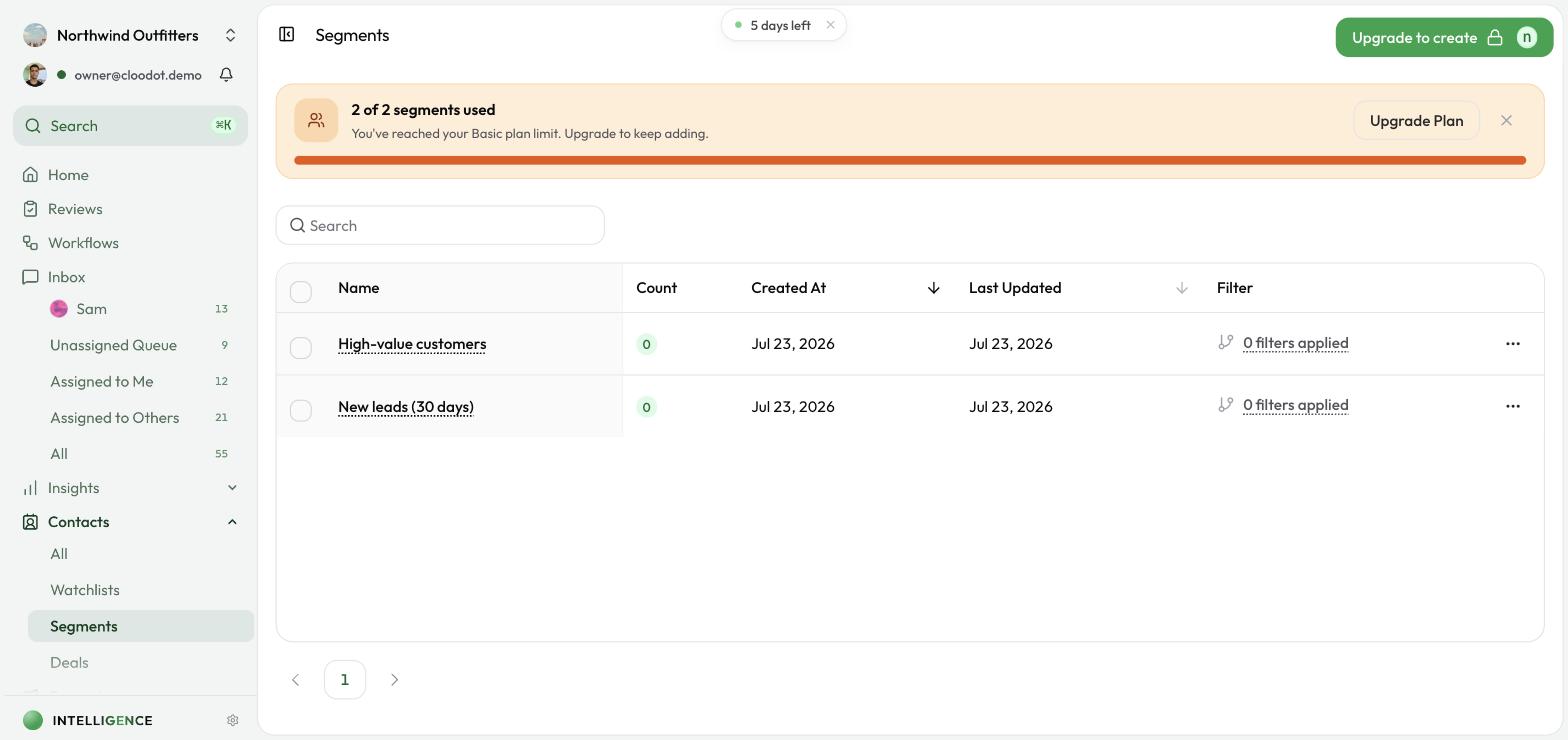
Segments power three places in Cloodot:
- The Segments tab under Customers (the full list)
- Watchlists, for live monitoring
- The Segment filter on the All Contacts table
Opening Segments
- Go to Customers in the left sidebar.
- Click Segments.
You'll see every segment in your workspace and a button to create a new one.
Creating a segment
- Click Create Segment.
- Define it:
- Give it a clear name (e.g. "Recent Instagram Leads", "High LTV Customers").
- Add conditions in the builder. Each condition has a field, an operator, and a value.
- Choose how conditions combine — match all (AND) or any (OR).
- Save the segment.
Available filter fields
Filter on built-in fields (name, email, phone, created date, last customer reply), any contact or conversation custom fields you've created, and labels.
Last customer reply is the date of the most recent message the contact sent you, across all of their conversations. Only the customer's own messages count — replies from your team, the AI or a campaign don't move it — so it is the field to reach for when you want to know who is engaged and who has gone quiet:
- In the last … days keeps contacts who replied inside a rolling window measured from the moment the segment runs. Use
1for everyone still inside the WhatsApp 24-hour messaging window. - Not in the last … days keeps contacts with no reply in that window, including contacts who have never replied. Add Has replied as a second condition to narrow it to customers who used to reply and stopped.
- The calendar conditions (Is today, Last month, Is before …) look at the date of the last reply itself, so they only match contacts who replied at least once.
Condition operators by field type
| Field type | Available operators |
|---|---|
| Text / Phone | Equals, Not Equals, Contains, Does Not Contain, Starts With, Ends With, Is Empty, Is Not Empty |
| Number | Equals, Not Equals, Greater Than, Greater Than or Equal, Less Than, Less Than or Equal |
| Date | Is, Is Not, Is After, Is Before, Is in Last 7 Days, Is Today, Is Yesterday, Is This Week, Is This Month, Is Last Month |
| Last customer reply | In the Last … Days, Not in the Last … Days, Is, Is Not, Is After, Is Before, Is in Last 7 Days, Is Today, Is Yesterday, Is This Week, Is This Month, Is Last Month, Has Replied, Has Never Replied |
| Boolean | Is True, Is False |
| Select | Equals, Not Equals, Is Empty, Is Not Empty |
| Multi-select | Contains Any, Contains All, Does Not Contain Any, Does Not Contain All, Is Empty, Is Not Empty |
| Label | Has Label, Does Not Have Label, Has Any Label, Has No Labels |
Once saved, a segment:
- Appears in the Segments list
- Shows up in the Segment dropdown on All Contacts
- Shows up in the segment picker on Watchlists
Applying segments
- In All Contacts — Select a segment to see only matching contacts. A banner above the table shows the active segment and how many contacts match.
- In Watchlists — Pick one or more segments to monitor matching contacts together in one table.
Segments are dynamic. When contact data or conversations change, membership updates automatically based on the rules.
Editing or deleting segments
Open a segment from the Segments page to review its rules, adjust filters to refine who's included, or delete it if you no longer need it. Changes apply everywhere the segment is used (All Contacts filter and Watchlists).
Note: Deleting a segment does not delete contacts. It only removes the grouping rule.
Sharpen your segmentation
- Custom Fields — Create fields to power more sophisticated filters
- Labels — Use labels in segment conditions
- All Contacts — Filter and analyze contacts in the table view
- Watchlists — Monitor selected segments side by side
Use segments in campaigns
- Campaigns — Target segments with WhatsApp marketing campaigns
- WhatsApp Templates — Build templates for segment-specific messaging
Related
- Contacts Overview — The full contact system
- Insights — Analyze segment performance and engagement