All Contacts
View, search, filter, edit, and export every contact in your workspace.
The All Contacts view is your main contact list — a table where you can search, filter, edit, and export every contact in your workspace.
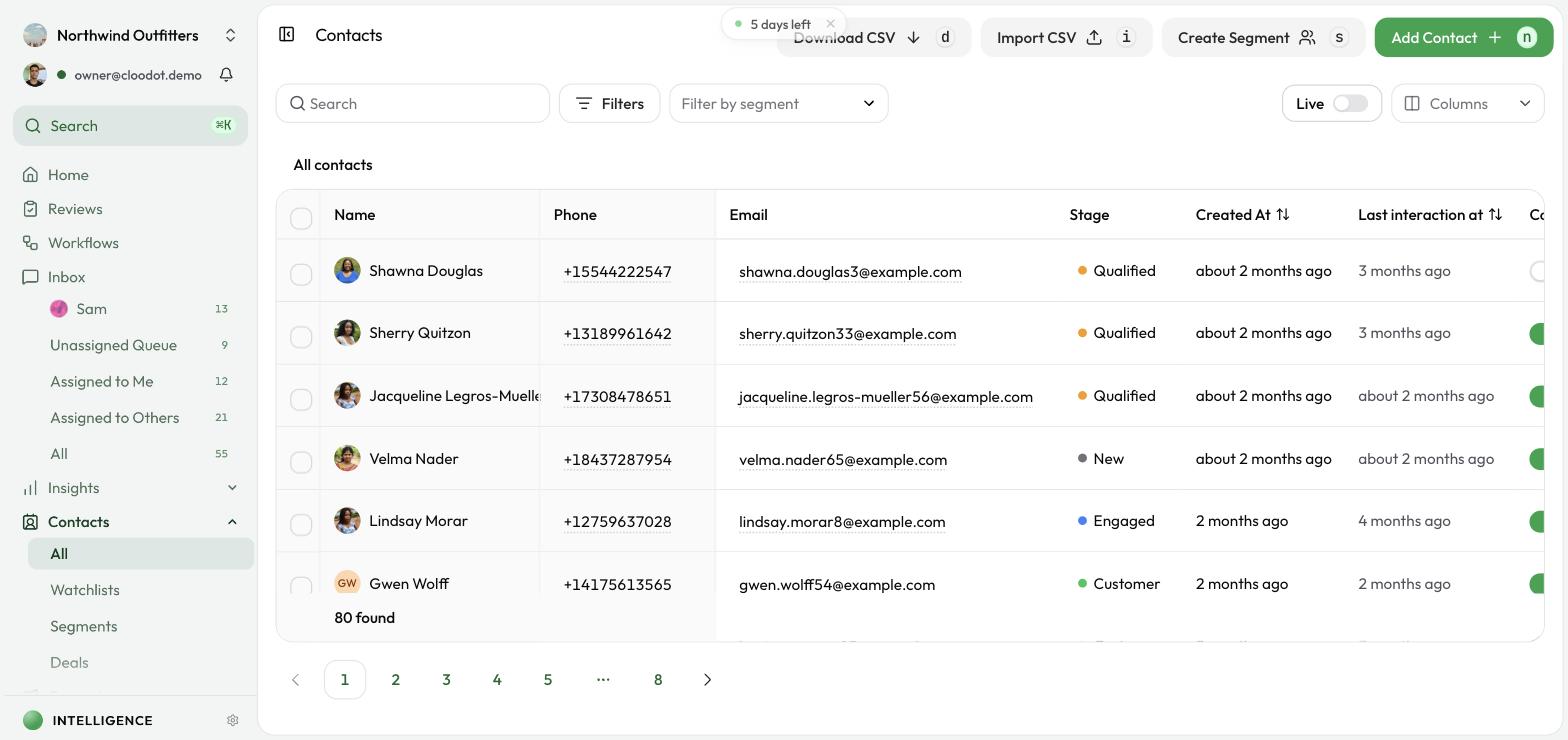
Opening All Contacts
- Go to Customers in the left sidebar.
- Click Contacts under the Customers menu.
The table lists every contact in your workspace.
What's on the page
- Top bar:
- Search: Find contacts by name, email, or phone.
- Filters: Open the Quick Filter drawer to apply temporary filters.
- Segment selector: Apply a saved segment (e.g. "High value customers").
- Live toggle: Auto-refresh the table every few seconds.
- Columns: Pick which custom fields appear as columns.
- Table:
- Rows represent contacts.
- Columns include:
- Select – Checkbox to select contacts for bulk actions
- Name – Contact name with avatar and color
- Email – Editable inline
- Phone – Editable inline
- Created At – When the contact was created (shown as "x time ago")
- Last Interaction – Time since the last message, with a hover preview of the last message
- Campaign Opt-in – Toggle to control whether the contact can be used in campaigns
- Custom Fields – Any extra contact fields you've chosen to show (editable)
- Conversation Fields – Read-only columns that summarize conversation-level custom fields
- Actions – Button to open the contact editor
Searching and filtering
- Search bar: Type a name, email, phone, or keyword. The list updates after a short delay.
- Quick Filter drawer: Click Filters, add one or more conditions (label, created date, custom field value, etc.), and choose whether all must match (AND) or any can match (OR).
- Segments: Use the Segment dropdown to apply a saved segment. The banner above the table shows the active segment and how many contacts match. Manual and quick filters clear so the data matches the segment definition.
Live mode
Turn Live on to auto-refresh the list every few seconds and keep the table in sync with incoming conversations. Turn it off to work on a stable snapshot.
Editing contacts inline
Update fields directly in the table:
- Email and phone — Click the value, type the new one, then press Enter or click away to save.
- Contact custom fields — Type into text, URL, phone, email, and number fields. Pick options for select and multi-select fields. Choose a date for date fields.
- Campaign opt-in — Toggle the switch to enable or disable campaign opt-in for that contact.
Cloodot saves changes automatically.
Viewing contact details
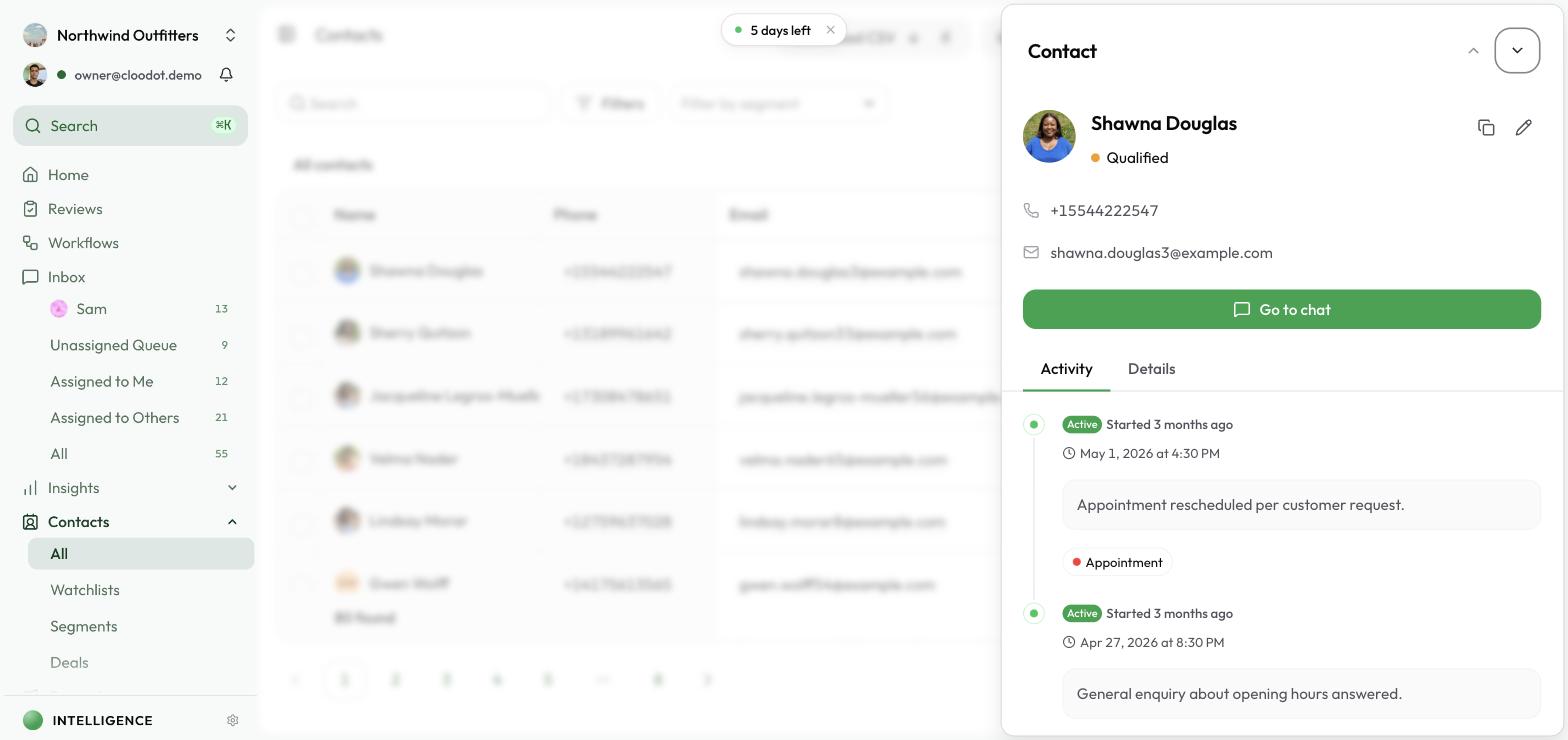
Click any contact row to open the Contact Details drawer. From here you can:
- See full profile information (name, email, phone, image)
- Review recent conversations and custom fields
- Make deeper edits, depending on your workspace settings
Bulk actions and deletion
Use the checkboxes on the left to select contacts. An action bar appears at the bottom showing how many are selected.
- Select across pages. Your selection stays with you as you move between pages. When some of the selected contacts are on other pages, the action bar says how many — for example, 3 selected · 2 on other pages.
- Select everything that matches. Tick the checkbox in the table header to select the whole page, then click Select all in the action bar to select every contact that matches your current search, filters, or segment — not just the ones on screen. You can still untick individual rows afterwards.
- Changing your search, filters, or segment clears the selection.
From the action bar you can:
- Change stage — move the selected contacts to a lifecycle stage, or to No stage. If some of them are on other pages, you're asked to confirm first.
- Delete — remove the selected contacts. The confirmation dialog shows how many of the selected contacts have conversations and how many don't; contacts with conversations are kept. Confirm to delete.
When every matching contact is selected, both actions ask first. The confirmation shows how many contacts match your view, how many you unticked and, for a delete, how many are kept because they have conversations. To delete, type the number shown. The action then applies to exactly the contacts that were counted: a contact that starts matching your view after the confirmation opens isn't included.
Large selections are processed in batches with a progress bar: keep the tab open until it finishes, or click Stop to end the run after the current batch. Anything already deleted or moved stays that way. If you stop a run, or it fails part-way, your selection stays so you can try again.
Note: Deleting a contact is permanent. Be careful when deleting contacts that have conversation history.
Pagination
Choose how many contacts each page shows with Rows per page at the bottom right of the table: 10, 25, 50, or 100. Your choice is remembered in this browser. Use Previous / Next or the page numbers at the bottom to navigate. The footer shows the total number of contacts found.
Exporting contacts as CSV
Export contacts to a CSV file for use in other tools:
- Narrow the list with search, segments, or filters (optional).
- Click Download CSV in the page header.
- Configure the export:
- Number of contacts — How many to include (within the allowed range).
- Sort by —
Last InteractionorCreated Date. - Additional data — Include labels and custom fields from recent sessions.
- Confirm to start the download.
Your browser downloads a CSV named with the current date.