Conversation Insights
Track sessions, agent performance, sentiment, and traffic patterns.
Track session volume, agent performance, customer sentiment, and weekly traffic patterns in one place.
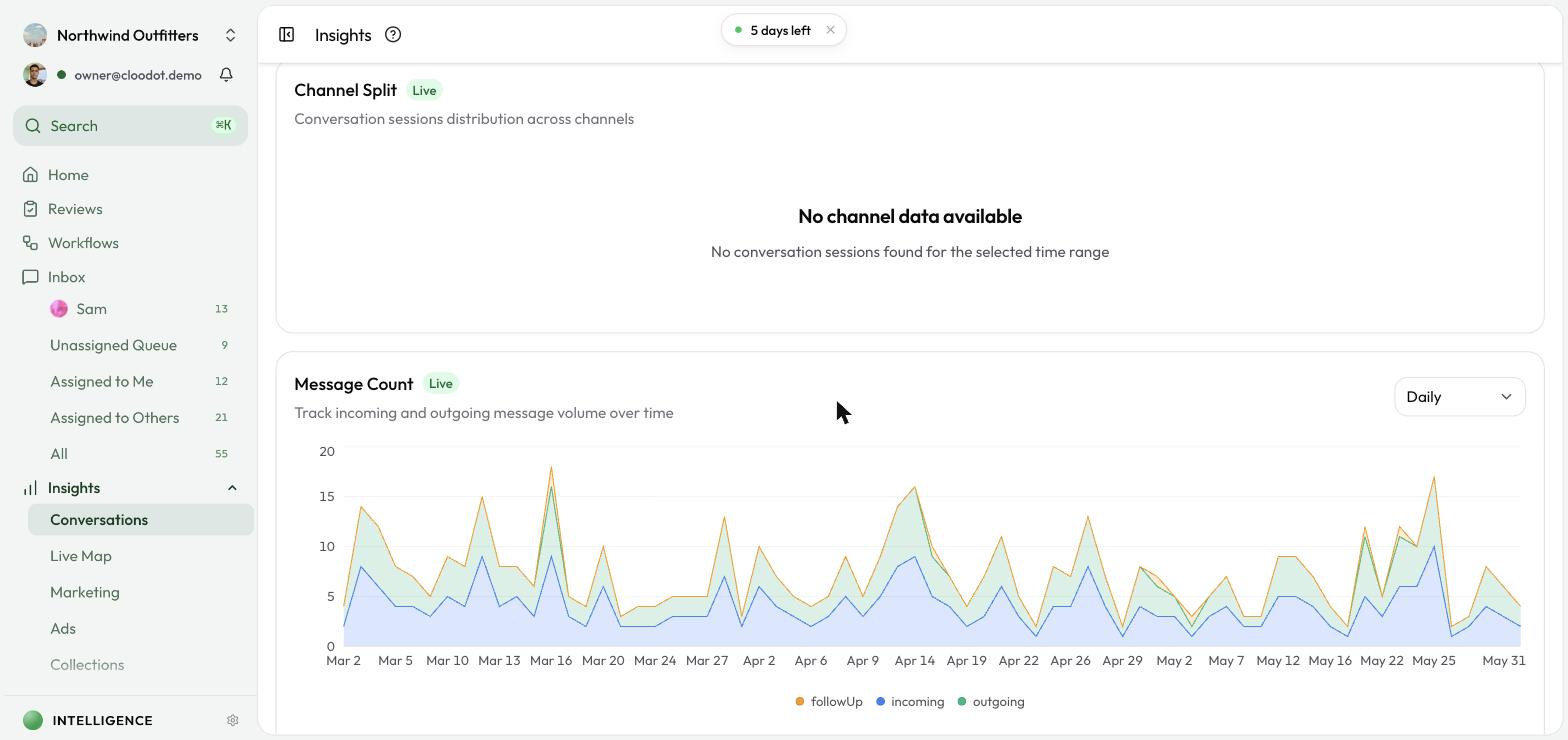
Metrics at a glance
- Session counts — totals, unassigned, AI vs. human assignments
- Agent performance — per-agent response times and handovers
- Label distribution — how conversations are categorized
- Sentiment — positive, neutral, and negative breakdowns
- Traffic patterns — when conversations happen during the week
Open Conversation Insights
- Click Insights in the left sidebar.
- Click Conversations (selected by default).
Filters
Time range
- Last 7 days (default)
- Today
- Yesterday
- This month
- This year
- All time
Channel filter
Open the Channel Filter dropdown and pick one or more of Instagram, Facebook, WhatsApp, or WebChat. Leave it empty to include every channel.
Conversation counts
- Total Sessions — every conversation session in the selected range
- Unassigned Sessions — conversations not yet assigned to an agent
- AI Agents — sessions handled by the AI agent
- Human Agents — sessions assigned to teammates, with an Unreplied sub-count
Counts update in real time (marked with a Live badge) and auto-refresh every 2 seconds.
Agent performance
Per-agent metrics for your human teammates — response times, handovers, and workload.
Label distribution
A bar chart that breaks conversations down by label, sorted by count, with each label's share as a percentage. Use it to:
- See what customers ask about most
- Watch how topic mix shifts over time
- Decide which topics need more agent or AI coverage
Sentiment distribution
A bar chart of customer sentiment across conversations, categorized automatically as:
- Positive — customers expressing satisfaction
- Neutral — standard, factual exchanges
- Negative — customers expressing concerns or frustration
Use it to track overall satisfaction, spot negative-sentiment spikes early, and measure whether changes you make are moving the needle.
Session traffic
A heatmap of when conversations happen during the week.
- Rows — days, Monday through Sunday
- Columns — 24 hourly slots (0–1, 1–2, …)
- Color — light green for low activity, dark green for high, gray for none
- Hover any cell for the exact session count
Use it to plan agent schedules around real peaks, account for customer time zones, and watch for seasonal shifts.
Best practices
Regular monitoring
- Daily — scan conversation counts
- Weekly — review sentiment and label distribution
- Monthly — review traffic patterns for staffing decisions
Turning insights into action
- High unassigned count — add agents or improve AI agent responses
- Negative sentiment trend — investigate root causes
- Peak traffic times — make sure coverage matches the peaks
- Slow response times — add training or capacity
Troubleshooting
No data showing
- Expand the time range to All time — the default 7-day window often hides existing data.
- Confirm conversations actually exist in the selected period.
- Check that your channels are connected.
Data not updating
- Refresh the page.
- Check your internet connection.
- Confirm new conversations are coming in — updates fire every 2–10 seconds.
Missing Agent Performance section
Make sure human agents are assigned to conversations and that those conversations fall in the selected time range.
Related topics
- Campaigns — Campaign analytics
- Intelligence Overview — AI-powered features
- Channels Overview — Channel connections