Inbox
Every conversation from every channel in one place.
Every message from Instagram, Facebook, WhatsApp, and WebChat flows into the Inbox — no app-switching.
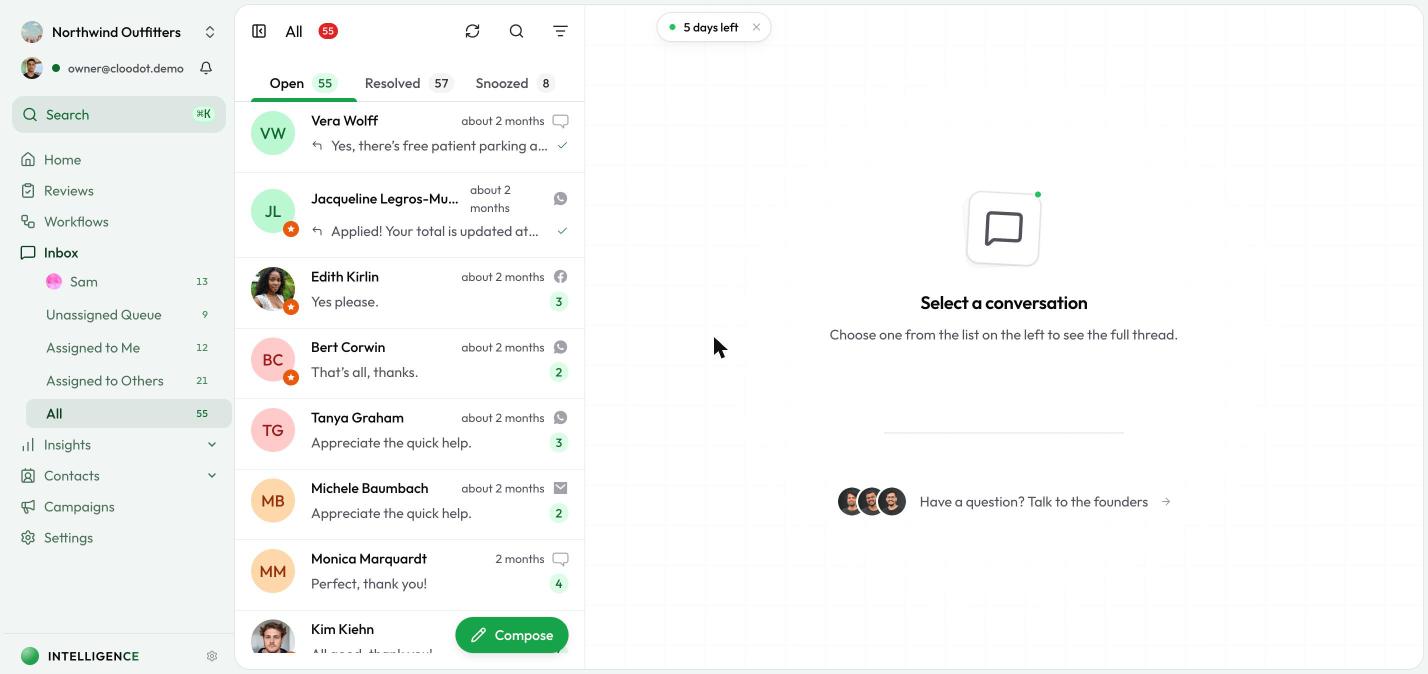
Inbox views
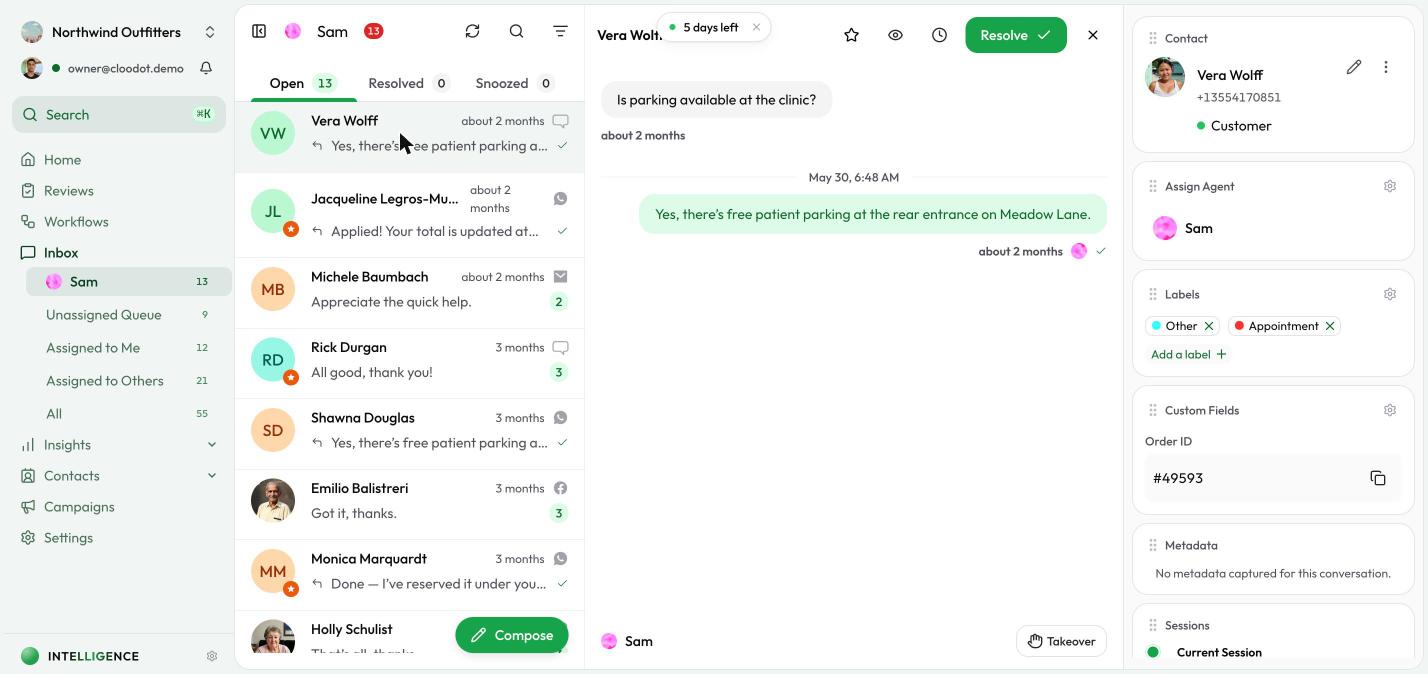
The view selector at the top of the conversation list switches between views. Each view shows a count of open conversations, so you can tell what needs attention at a glance.
| View | What it shows |
|---|---|
| AI Persona | Conversations currently handled by your AI agent |
| Mine | Conversations assigned to you |
| Others | Conversations assigned to other team members |
| Queued | Unassigned conversations waiting to be picked up |
| All | Every conversation across your workspace |
Team Inboxes
Below those views, a Team Inboxes section lists each team whose inbox is enabled — one entry per team, each with its own open-conversation count.
Team inboxes are a second way to organize work. Personal views (Mine, Others, Queued) filter by who owns the conversation. Team inboxes filter by which team queue the conversation sits in. A conversation can be in a team inbox and still assigned to a specific agent at the same time.
| Personal views | Team inbox | |
|---|---|---|
| Filters by | Who is assigned (Mine, Others, Queued, …) | Which team the conversation is routed to |
| Who can open it | Anyone with inbox access | Anyone with inbox access — not limited to that team's members |
| Badge | Open conversations in that view | Open conversations routed to that team |
Team inboxes are available on the Starter plan and above. See Teams to turn one on, and AI Agent for how the AI can route handovers into a team automatically.
A conversation routed to a team but not yet assigned to a person also appears in Queued. Team routing and individual assignment are independent.
Open, Snoozed, and Resolved tabs
Within any view, switch between Open, Snoozed, and Resolved to see active conversations, ones you've set aside for later, or ones that have been wrapped up. Each tab shows a count badge.
Snoozed conversations don't count toward your open total — they stay out of the way until their timer is up or the customer replies. See Snooze for how that works.
Filtering and sorting
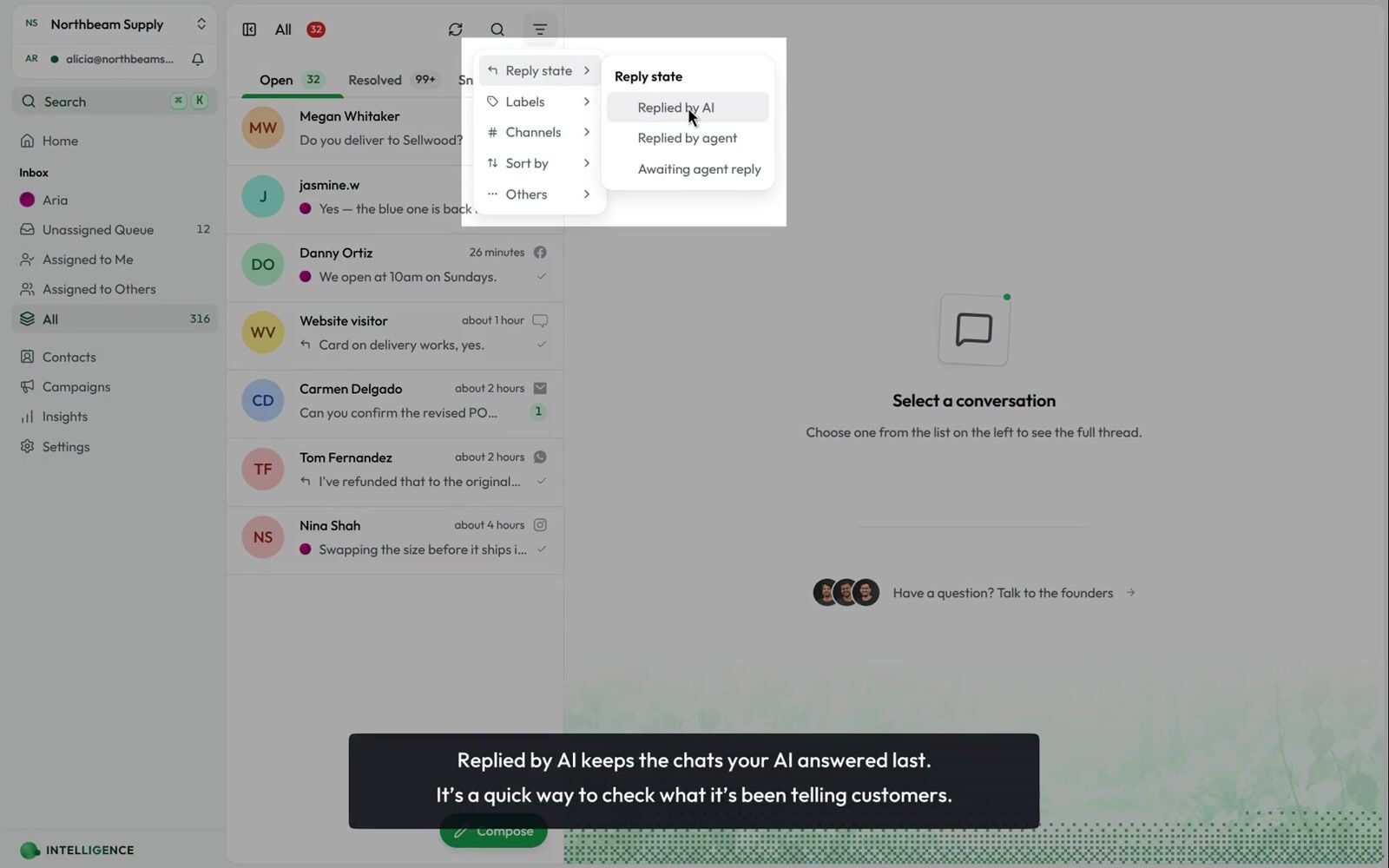
Click the filter icon to narrow the conversation list.
Filters:
- Reply state — Who sent the last message. Tick one or more; the list shows chats matching any of them:
- Replied by AI — your AI agent replied last
- Replied by agent — a teammate replied last
- Awaiting agent reply — no teammate has replied yet: the customer wrote last, or only your AI has answered. Includes everything in Replied by AI.
- Labels — Conversations with specific labels
- Channels — WhatsApp, Instagram, Facebook, WebChat, Email
- Others — Three on/off filters grouped together:
- Starred — Starred conversations only
- Unread — Conversations with unread messages
- Blocked — Conversations with contacts you've blocked. Blocking stops replies; it doesn't remove the chat from your inbox.
Sorting:
- Newest first (default) — Most recently active conversations at the top
- Oldest first — Oldest conversations at the top
- Priority — Most urgent first, newest within each level. See Priority
Filters and sort persist in the URL, so you can bookmark filtered views or share them with teammates.
Search
Click the search icon to open global search. Find conversations by contact name, message content, or other details.
Working with conversations
Opening a conversation
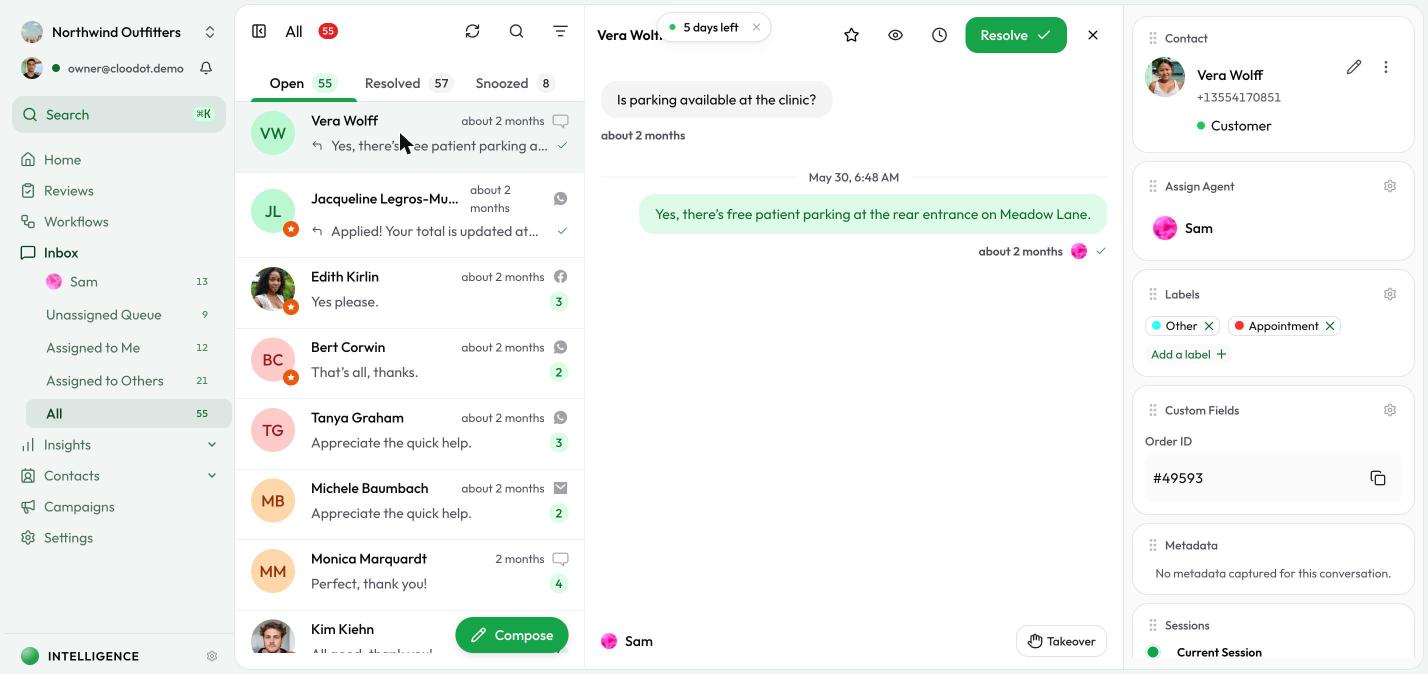
Click any conversation in the list. The full message timeline appears on the left and a details sidebar on the right.
Sending messages
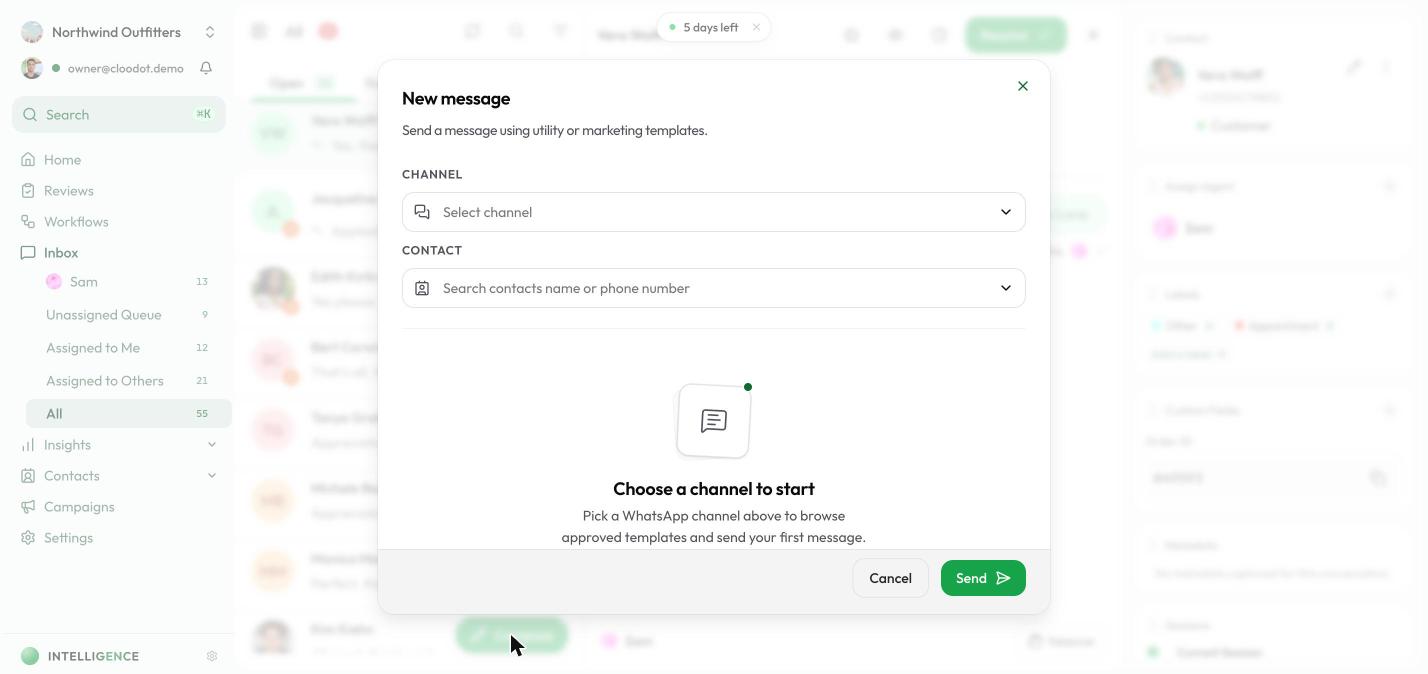
Type into the composer at the bottom. From there you can:
- Send text — Type and press Enter or click Send
- Attach files — Click the attachment button for images, videos, audio, or documents
- Record voice messages — Use the microphone button to record and send audio
- Send documents — Share files from your document library
- Use canned responses — Insert saved reply templates
Message types
The inbox supports every message type your channels offer:
- Text — Standard text messages
- Images — Photos and graphics with preview
- Videos — Video files with inline player
- Audio — Voice messages and audio files
- Files — Documents and other file types
- Location — Location pins with map preview
- Carousels — Multi-item product or content carousels
- Quick replies — Tappable buttons for fast customer responses
Resolving and reopening
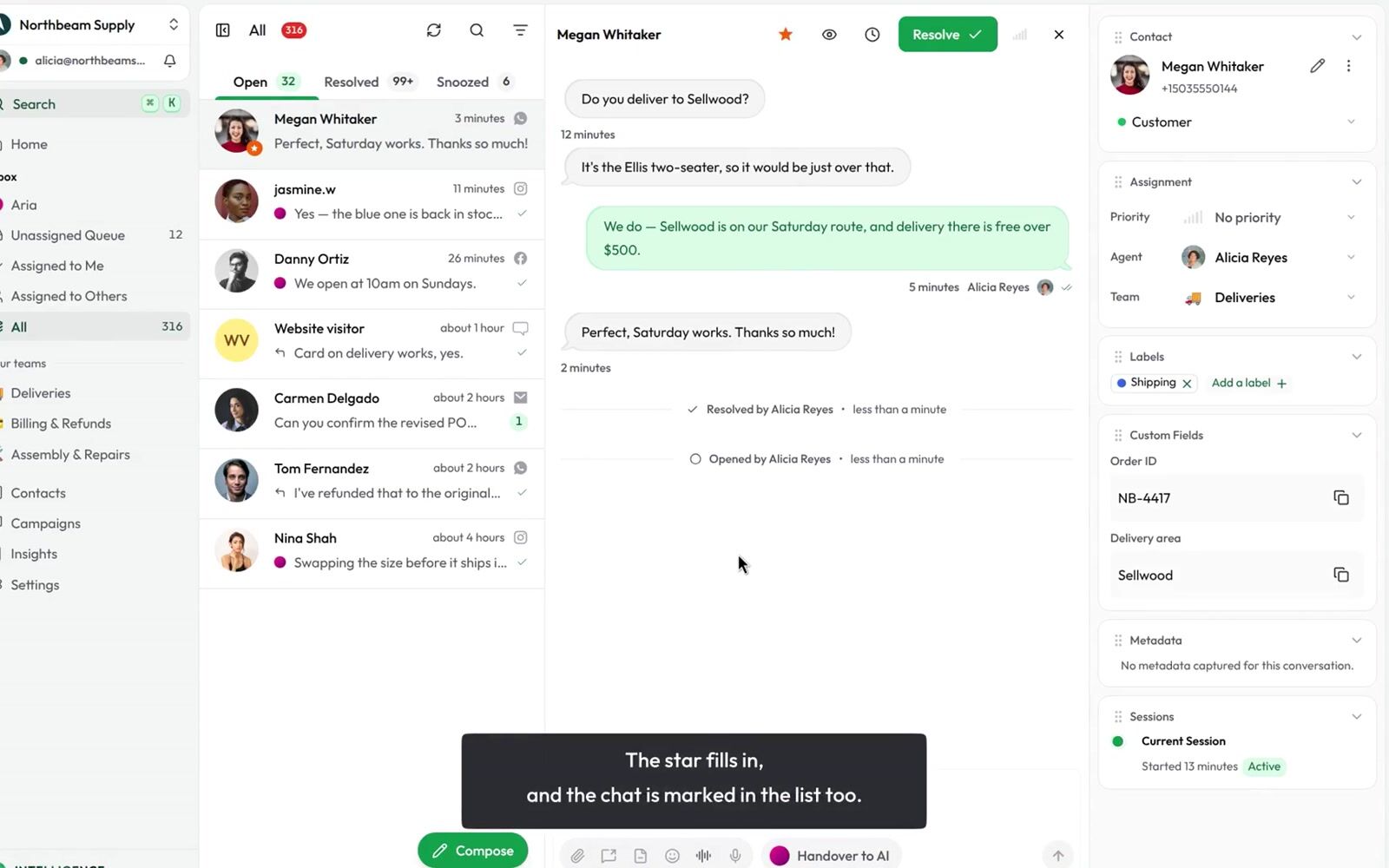
- Click Resolve (checkmark) in the conversation header to mark it done
- Resolved conversations move to the Resolved tab
- Click Reopen on a resolved conversation to move it back to Open
Snoozing
- Click Snooze (clock icon) in the conversation header to set a conversation aside
- Pick when it should come back — a preset time or a custom date and time
- It moves to the Snoozed tab and returns to Open at that time, or as soon as the customer replies
- See Snooze for the full details
Starring conversations
- Click the star icon in the conversation header to star or unstar
- Use the Starred filter to see only starred conversations
Marking as read or unread
- Opening a conversation marks it read automatically
- In an open conversation, click the eye icon in the header to mark it unread (or read)
- Right-click a conversation in the list and choose Mark as unread to flag it for later
- Use Mark as read from the same menu to clear the unread indicator without opening
Right-click context menu
Right-click any conversation in the list for quick actions:
- Star / Unstar — Toggle the star
- Mark as read / unread — Toggle the read state
- Resolve / Open — Change the conversation status
- Snooze — Set the conversation aside and choose when it comes back
- Change stage — Move the contact to another stage in your pipeline
- Open in tab — Open the conversation in a new browser tab
- Copy ID — Copy the conversation ID to your clipboard
The conversation sidebar
The right sidebar shows context about the current conversation. Click a section's title to fold it, drag its grip to reorder it, or hide the whole sidebar from the conversation header — see Arrange the sidebar.
Contact
The customer's name, avatar, phone number (or email), and their stage. From here you can:
- Double-click the name or phone number to edit it in place
- Click the stage row to move the contact to another stage
- Click the pencil to edit the full contact details
- Open the ⋮ menu to Block or Unblock the contact
Assignment
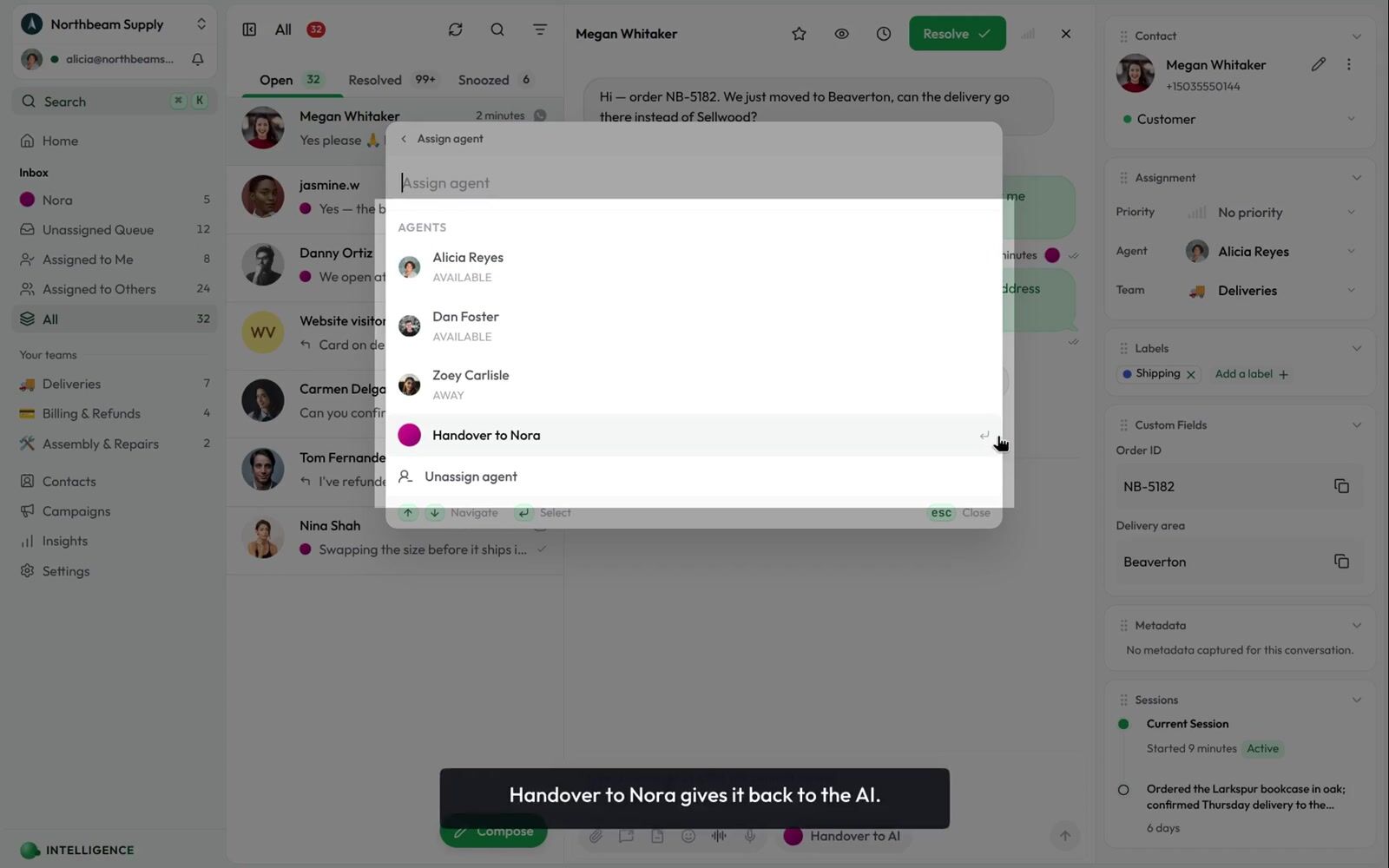
One section with three rows — how fast the conversation needs a person, and which person.
Priority — How urgent this conversation is, from No priority to Urgent, drawn as five bars. Your AI agent rates it when it hands a conversation over; click the row to change it yourself.
Priority belongs to the current interaction, not to the customer: when a new session starts — a resolved conversation the customer messages again, for instance — it goes back to No priority. See Priority for the full scale and every case that resets it.
Agent — Who owns the conversation:
- Select a team member to assign it to them
- Select Handover to your AI agent (the item carries the agent's name) to hand it off to the AI
- Unassign agent to send it back to the Unassigned Queue
Team — Route the conversation to a team inbox so the right group can pick it up:
- Select a team to route the conversation into its shared inbox
- Remove from team to take it back out
You can also use the command palette (Cmd+K / Ctrl+K) and choose Route to team.
Manual routing keeps the current agent. Routing to a team does not unassign whoever owns the conversation — a chat can have both a team and an agent at once. (When the AI hands a conversation over, it works differently: it clears the AI assignee and routes to a team or the general queue. See AI handover.)
The Team row only appears when your plan includes team inboxes and at least one team has its inbox enabled. See Teams to set one up.
Labels
Organize the conversation with labels. Click Add a label to pick one from your workspace's set in the command palette, or click the × on a label to remove it. Labels your AI agent applied look the same and come off the same way.
Custom Fields
View and edit custom field values for this conversation — order numbers, priority levels, account types, and other business-specific data.
Sessions
Each session is a distinct interaction period. The sidebar lists every session for the current conversation.
Command palette
Press Cmd+K (Mac) or Ctrl+K (Windows) for quick actions:
- Star / Unstar conversation
- Resolve / Open conversation
- Snooze conversation — Set it aside and choose when it returns
- Mark as read / unread
- Route to team / Remove from team — when team inboxes are enabled
- Search and navigate to other conversations
Real-time updates
The inbox updates live. New messages push conversations to the top of the list, unread counts update, and messages appear in open conversations — no refresh needed.
Related topics
- Snooze — Set conversations aside and have them come back when you need them
- Priority — How urgent a conversation is, who sets it, and when it resets
- Teams — Enable team inboxes and write descriptions for AI routing
- AI Agent — Automatic assignment to teams on handover
- Channels Overview — Connect the channels that feed into your inbox
- Labels — Organize conversations with labels
- Custom Fields — Track business-specific data
- Canned Responses — Set up quick reply templates
- AI Agent — Configure your AI agent for automated handling
- Workflows — Automate conversation management tasks