WhatsApp Settings
Configure your WhatsApp Business API connection and message templates.
Manage your WhatsApp Business connection and your message templates from Settings.
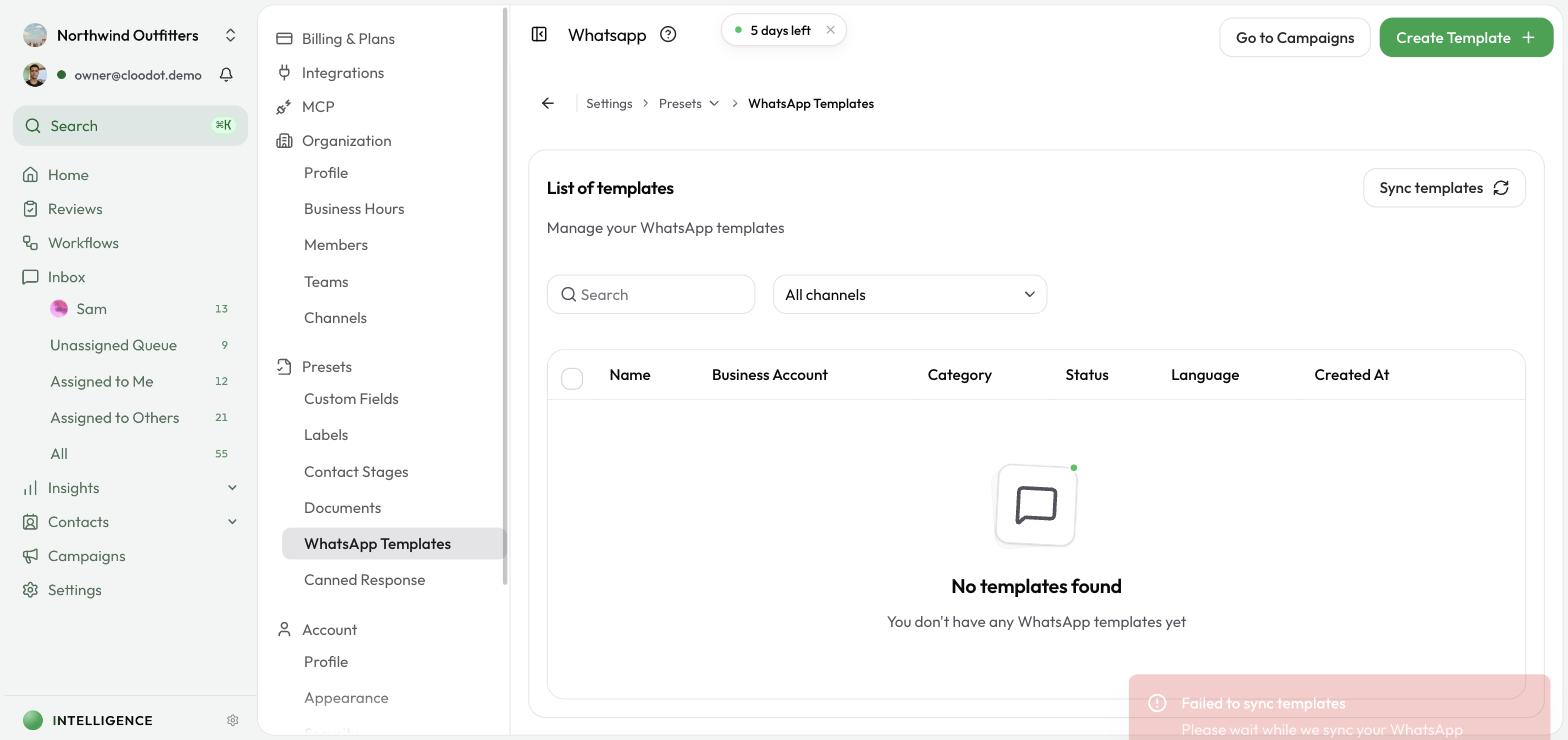
Where to find it
Go to Settings → Presets → WhatsApp Templates. Your connection itself lives in Settings → Organization → Channels.
Connect WhatsApp
If WhatsApp isn't connected yet:
- Click Connect WhatsApp or Add Channel.
- Follow the wizard to link your WhatsApp Business account.
- You'll need:
- A Meta Business account
- A WhatsApp Business account
- A payment method set up in Meta Business Suite
For step-by-step instructions, see Connect WhatsApp.
Manage message templates
WhatsApp requires a pre-approved template for outbound messages and campaigns. Manage them from Settings → Presets → WhatsApp Templates.
View templates
- Every approved WhatsApp template
- Status — approved, pending, or rejected
- Template usage and expiration dates
Create a template
- Click Create Template or New Template.
- Fill in:
- Name — a unique identifier
- Category — Marketing or Utility
- Language — template language
- Content — your message
- Variables — placeholders for dynamic content (e.g.
{{1}})
- Submit for Meta's approval.
Note — approval can take 24–48 hours. You'll be notified when the template is approved or needs changes.
WhatsApp Business features
- Message templates — create and manage approved templates
- Media support — send images, documents, and other media
- Two-way messaging — keep conversations going with customers
- Read receipts — see when messages are delivered and read
Get templates approved
- Comply with policy — follow WhatsApp's Business Policy.
- Be clear — keep template copy concise.
- Use variables — personalize messages without spinning up dozens of templates.
- Review regularly — update templates so they stay relevant.
Troubleshooting
Template rejected
Read Meta's rejection reason, then:
- Edit the template to address the issue.
- Resubmit for approval.
Connection issues
If you can't connect:
- Confirm your Meta Business account has the right permissions.
- Confirm your WhatsApp Business account is active.
- Check that a payment method is set up in Meta Business Suite.
For more help, see the WhatsApp Channel Guide or contact support.