Organization Profile
Manage your organization's core identity and auto-resolve behavior.
The core details that identify your organization and control how it operates.
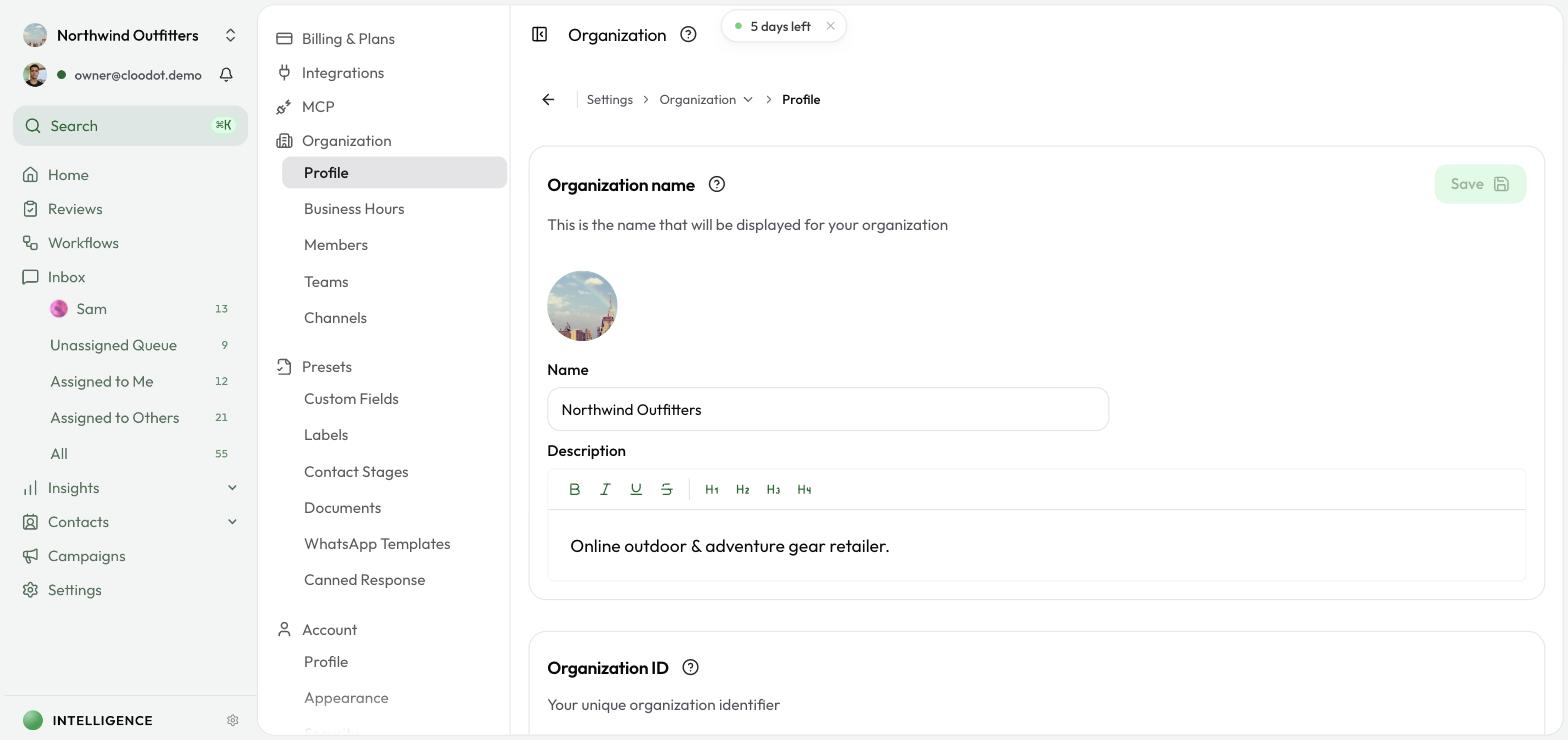
Open the Profile page
Go to Settings → Organization → Profile. You'll see sections for the logo, name and description, organization ID, country, and auto-resolve.
Logo
Click the logo area to upload an image and personalize your workspace.
Name and description
- Organization Name — the display name shown throughout the app. The AI agent also uses it as context for your business.
- Description — a short summary of your business. Helps the AI agent produce better answers and gives new members quick context.
To update:
- Edit Organization Name.
- Edit Description.
- Click Save.
Organization ID
Your unique workspace identifier. Click Copy when you need to:
- Reference it in a support request
- Set up an API integration
- Share it with support during troubleshooting
Note — the Organization ID is permanent and can't be changed.
Country
Set the country. This becomes the default country code for phone numbers.
Auto Resolve
Set how many days a conversation can stay open before Cloodot auto-resolves it.
- In the Days (0–90) field, enter the number of inactive days. Enter 0 to disable auto-resolve.
- Click Save.
Note — you can manually reopen a resolved conversation if the customer replies.