Audit Log
See who changed what in your settings, and when.
The Audit Log records every settings change made in your organization — who made it, when, and what the value was before and after.
It is read-only and append-only. Nobody, including owners, can edit or delete an entry.
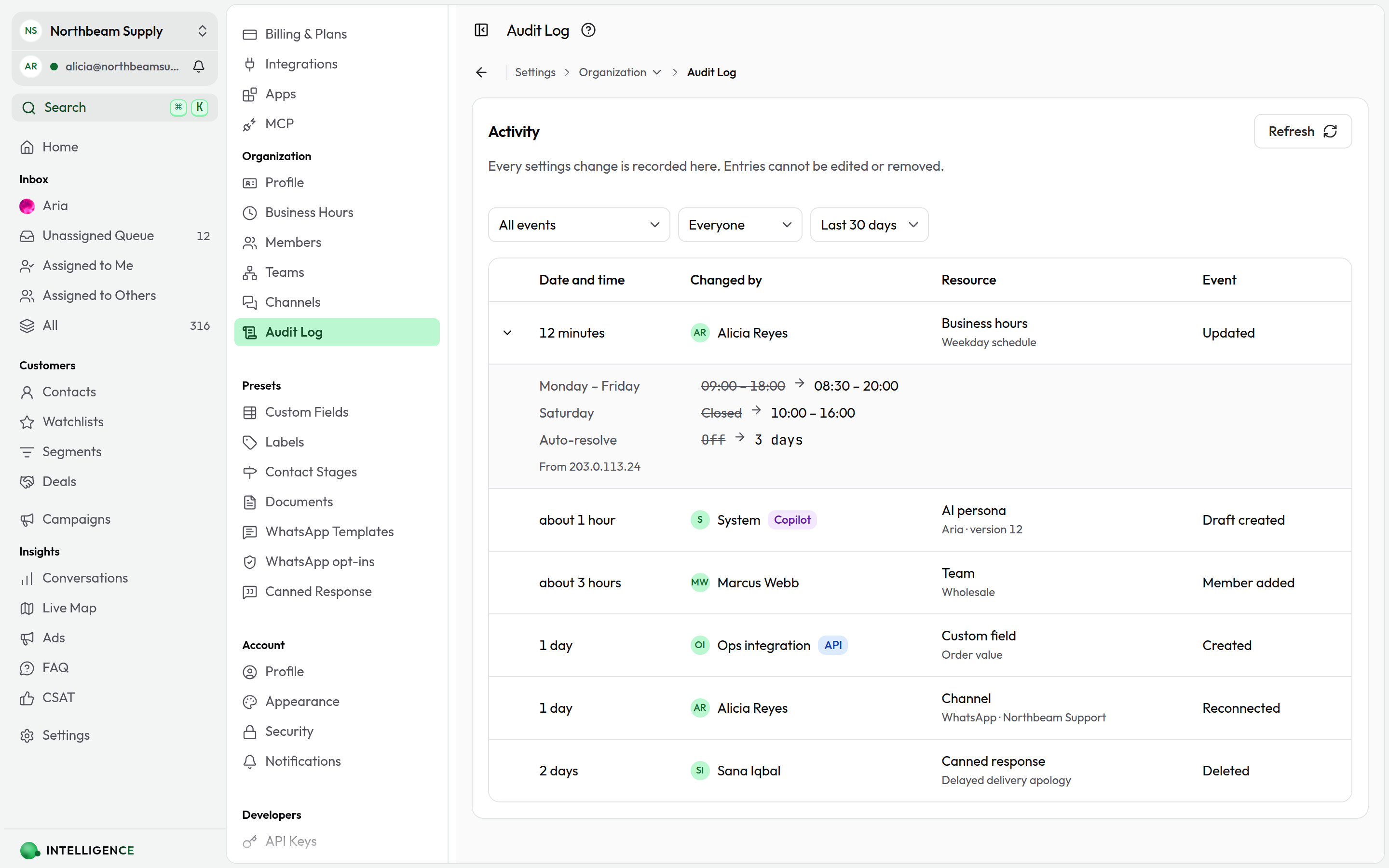
Open the Audit Log
- Go to Settings → Organization → Audit Log.
- You'll see a table with:
- Date and time – When the change was made. Hover for the exact timestamp.
- Changed by – The person who made the change, with a badge when the change came from somewhere other than a signed-in user (see Who made the change).
- Resource – The settings area affected, and the specific item where there is one (an agent's name, a day of the week).
- Event – What happened.
- Click any row with an arrow to expand it and see the before → after values.
Only admins and owners can open the Audit Log.
Filter the log
Three filters sit above the table:
- All events – Narrow to one kind of change, for example Agent version deployed.
- Everyone – Narrow to one person.
- Time range – Last 7, 30, or 90 days, or all time. Defaults to the last 30 days.
The log loads the most recent entries first. Use Load more at the bottom to go further back.
Who made the change
Settings can be changed from the dashboard, but also through the public API, the MCP server, and the copilot. The Changed by column tells these apart with a badge:
- (no badge) — a signed-in team member changed it from the dashboard.
- API — changed with an API key.
- MCP — changed through a connected MCP client.
- Copilot — changed by the copilot on someone's behalf.
- System — changed by Cloodot itself, with no person involved.
This matters most for settings an AI agent can reach on its own, like auto-resolve.
What gets recorded
| Event | What it covers |
|---|---|
| Organization settings updated | Name, workspace URL, business description, country, and auto-resolve |
| Business hours updated / removed | Open/closed state and opening times per day |
| AI intelligence level changed | The org-wide model tier for customer-facing replies |
| Agent version saved | An agent's draft started — the first save that parks changes without deploying |
| Agent draft updated | Later saves onto that same draft, with the fields that changed |
| Agent draft deleted | A draft discarded before it ever went live |
| Agent version deployed | A new agent version taken live, with the config fields that changed |
| Agent rolled back | An earlier agent version restored |
| Member invited / Invitation revoked | An invitation sent, or cancelled before it was accepted |
| Team created / updated / deleted | Teams in your organization |
| Channel settings updated | A channel renamed, or switched active/inactive |
| Channel disconnected | A channel queued for removal — this stops every conversation on it |
| Label created / updated / deleted | Labels, including the AI extraction toggle |
| Canned response created / updated / deleted | Saved replies |
| Custom field created / updated / deleted | Both contact and conversation fields |
| API key created / updated / revoked | Developer API keys — never the key itself |
Agent changes are also visible per-agent in the version history drawer on the agent's page, which keeps the full text of each version. The Audit Log is the org-wide view across every settings area.
Reading the before → after values
Expanding a row shows one line per changed field:
- Auto-resolve after — shown as a number of days, or Off when auto-resolve is disabled.
- Toggles — shown as On / Off.
- Empty values — shown as —.
- Long text (agent instructions, descriptions) — shortened, with the full value on hover. Very long values are stored trimmed; the agent's version history holds the complete text.
The IP address the change came from is shown underneath when it was recorded.