Integrations
Connect the other tools your business runs on so their data shows up inside Cloodot.
Go to Settings → Integrations to connect Cloodot to the other tools your business runs on. Once a service is connected, your team and your AI agent can pull its data straight into a conversation — no switching tabs, no copy-paste.
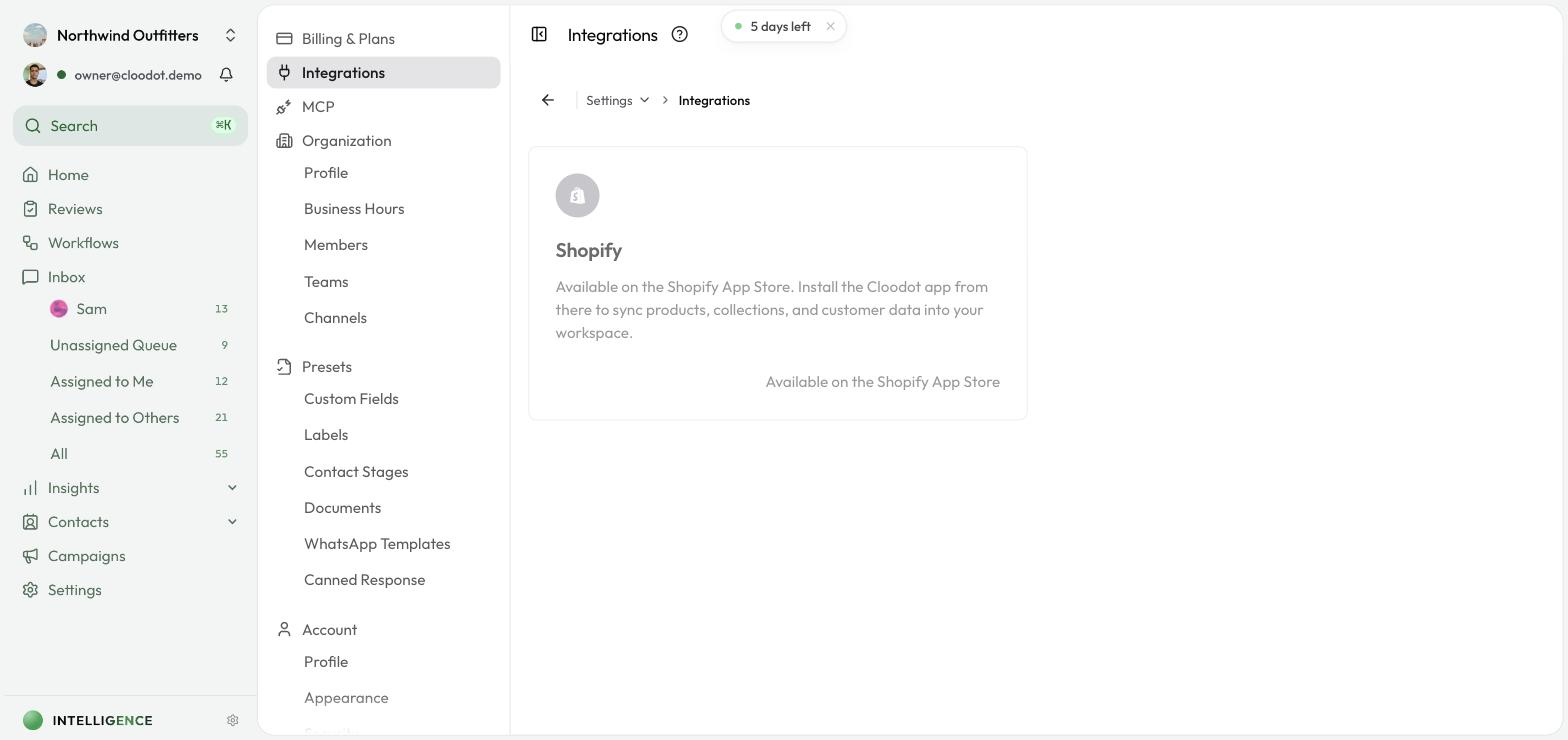
What you can connect
- Shopify — look up customers, products, orders, and collections from your store
More integrations are on the way. If you need one that isn't here yet, tell us at support@cloodot.com — it helps us decide what to build next.
Connect a service
- Click its card.
- Sign in to that service when it asks.
- Approve the access Cloodot requests.
- You land back on the Integrations page with the connection active.
After connecting
The card shows whether the connection is live. Click it to change settings or to disconnect.
Disconnecting stops everything that relies on that service. An AI agent that looks up order status, for example, will stop finding orders. Check what depends on the connection before you disconnect.
If something isn't working
The connection won't complete
- Check that you're signed in to the account you meant to connect — your browser may still be signed in to a different one.
- Check that your account on that service is allowed to grant app access. On most platforms that means an owner or admin.
- Disconnect and connect again.
The data looks out of date
- Open the card and confirm the connection still reads as active.
- Check that nobody revoked Cloodot's access from the other service's side.
- If it still looks wrong, email support@cloodot.com.
Related topics
- Copilot Settings — connect tools to Copilot through MCP
- MCP Servers — add your own MCP server
- Channel Connections — connect WhatsApp, Instagram, Facebook, and webchat