Set Up WebChat
Add a chat widget to your website so visitor conversations land in your Cloodot inbox.
Add a WebChat widget to your website so visitors can start conversations from any page. Messages land in your Cloodot inbox alongside other channels.
What WebChat does
WebChat is a customizable widget you embed on your site. Visitors can:
- Start conversations directly from any page
- Chat with your team in real time
- Get help without leaving the page
- Pick up where they left off through conversation history
Before you start
You'll need:
- A website you can add a code snippet to
- Access to your site's HTML (or template/header file)
- A Cloodot workspace
Set up WebChat
1. Open the Channel Connection Wizard
Start from one of two places.
From the inbox (no channels connected yet)
- Open Inbox or Conversations
- Under "No channels connected", click Connect WebChat (purple icon)
From Settings
- Go to Settings → Organization → Channels
- Click Add Channel or the + button
- Select WebChat
2. Configure the widget
- Company name — Shown in the widget header
- Website URL — Where you'll install the widget
- Customize appearance (optional):
- Brand color (hex) for the launcher and header
- Widget position — Bottom right, Bottom left, Top right, or Top left
- Widget mode — Visible, or Background (no launcher; see below)
- Contact collection — Email only, Phone only, or Email or phone
Everything else — the greeting, the composer placeholder, the chat avatars — lives on the channel's settings page, next to a live preview of the widget. See Customizing your widget.
3. Copy the embed code
After you save, Cloodot generates a JavaScript snippet. It looks like this:
<script>
  (function() {
    // Your WebChat widget code
  })();
</script>
4. Add the code to your website
On every page (recommended)
Paste the snippet into your site's main template or header file, just before the closing </body> tag. Save and publish.
On specific pages
Paste the snippet before </body> on each page where you want the widget, then publish.
5. Test the widget
- Visit your website
- Click the chat launcher (bottom-right by default)
- Send a test message
- Confirm it appears in your Cloodot inbox
Success
Your WebChat widget is live. Visitors can start conversations from your site.
Customizing your widget
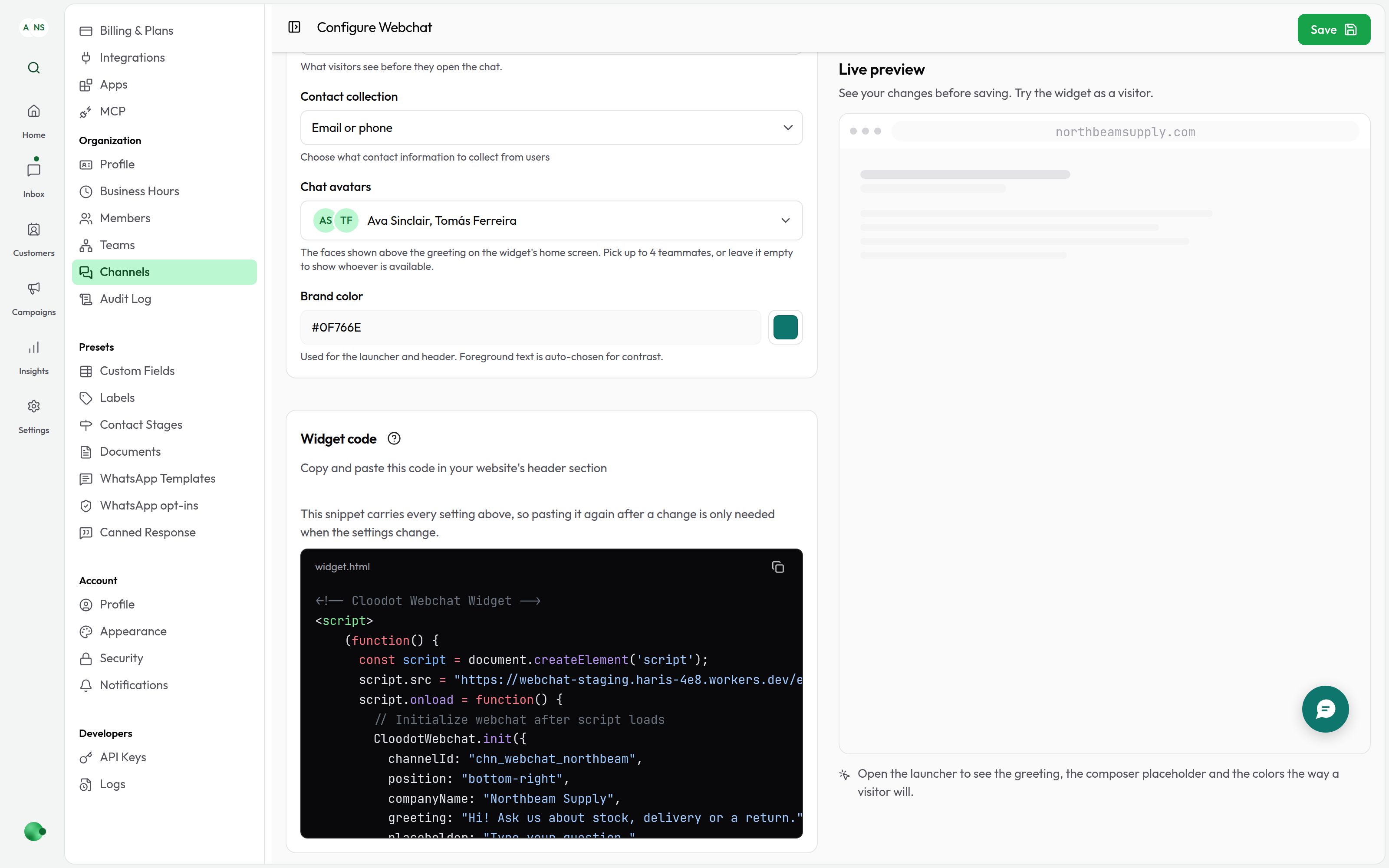
Go to Settings → Organization → Channels and open your WebChat channel. Every setting on this page is previewed beside it: the panel on the right runs the real widget, so the corner, the brand color and the wording are the ones a visitor will get. Edits show there before you save.
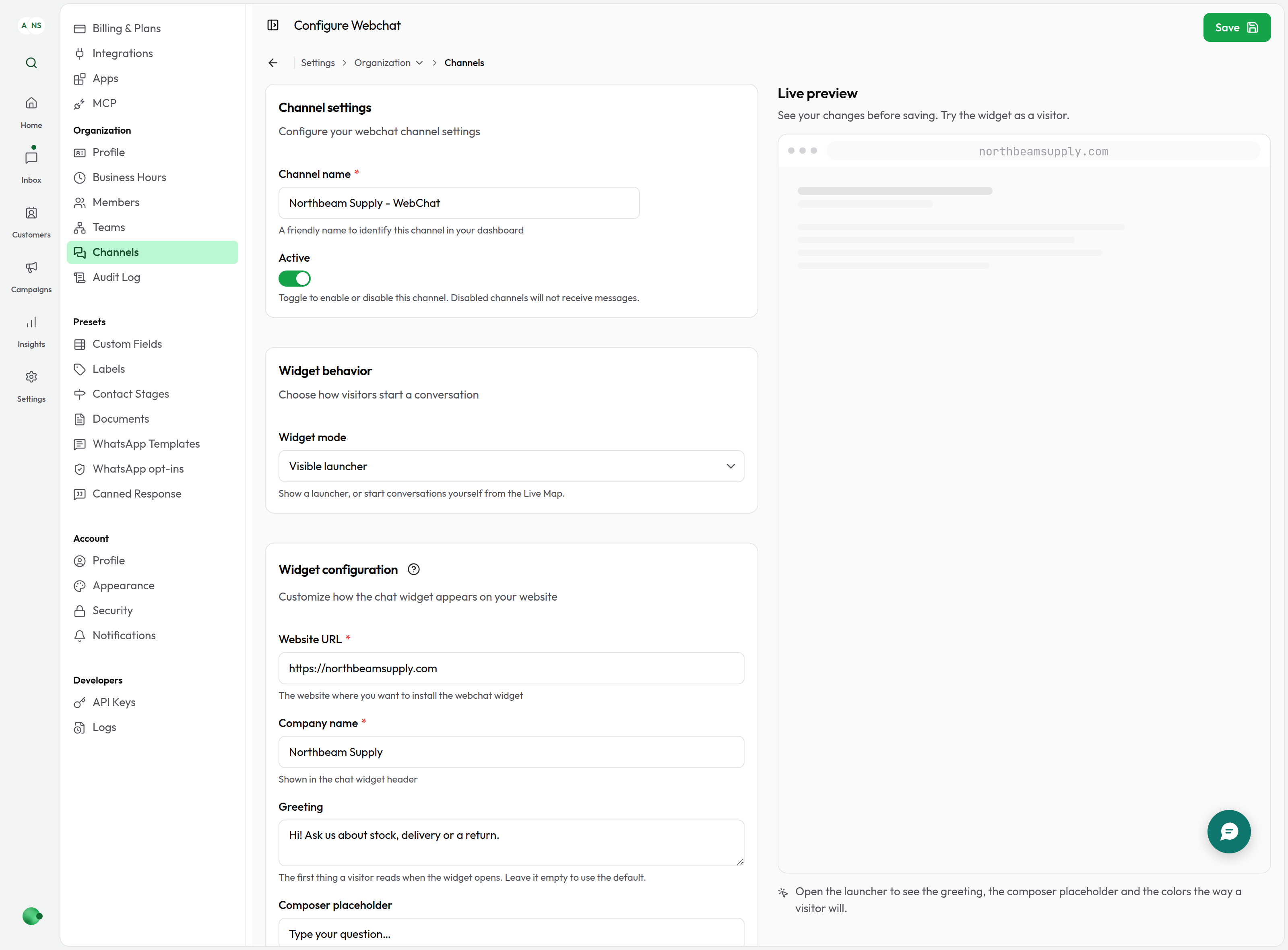
The preview stays with you. Scroll down through the fields and it pins beside them, clear of the page header and as tall as the window allows — so the widget in it is the height a visitor gets on a real page, rather than a short panel with empty space under it. Open the launcher and the greeting, the avatars and the composer sit where they will on your own site.
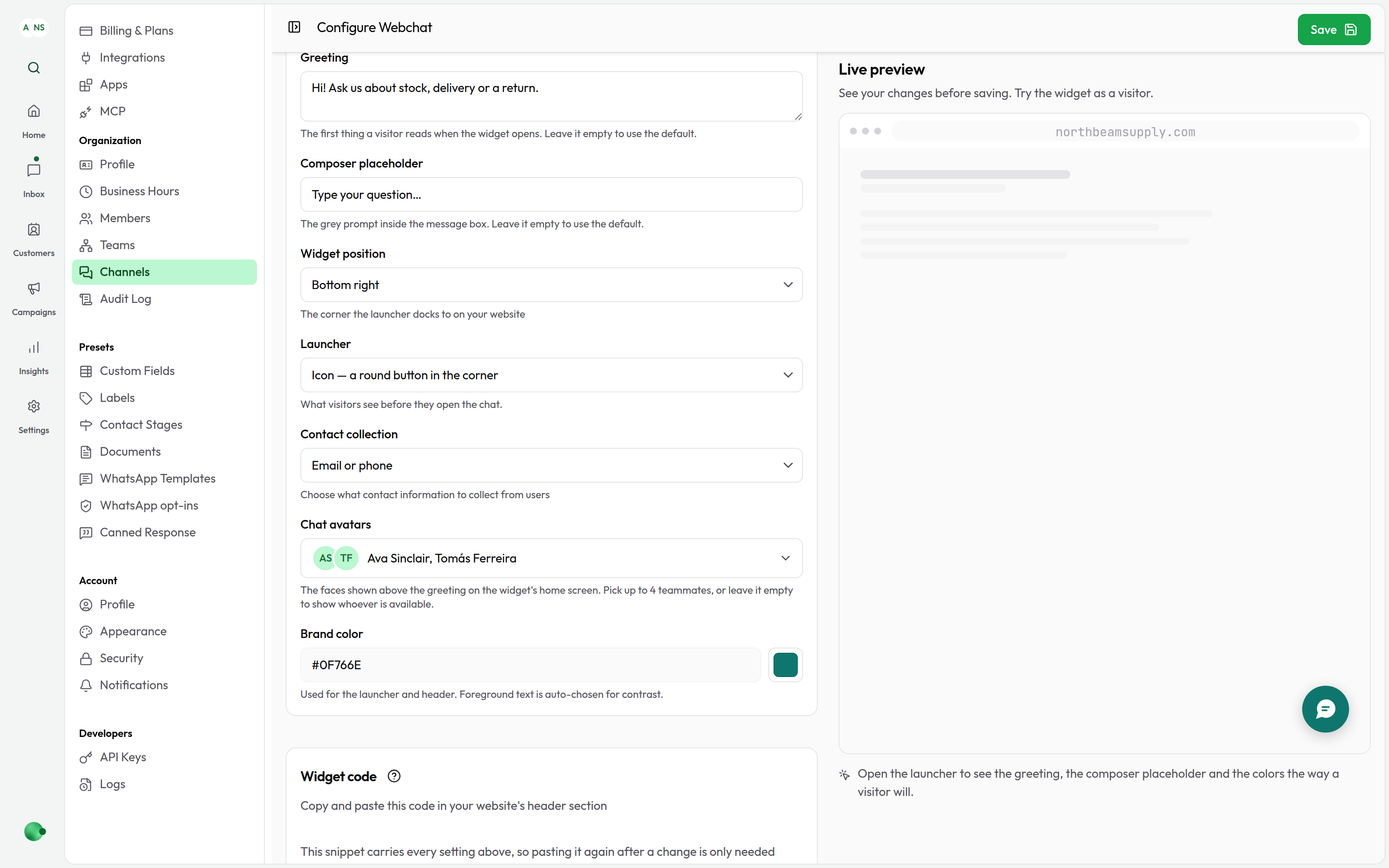
Appearance
-
Brand color — Hex color for the launcher and chat header (e.g.,
#0F766E). Text color is chosen automatically for contrast. -
Color scheme — The surfaces the widget is painted on:
- Light (default) — the white panel every widget starts with.
- Dark — the same widget on dark surfaces, for a site that is dark everywhere.
- Auto — whichever the visitor's device is set to, followed live if they switch mid-conversation.
Your brand color is untouched in each; only the panel, the message bubbles and the composer change. The launcher's ask bar and the pop-up card a visitor receives on your page follow the same scheme, so nothing white opens onto a dark site. The live preview paints its stand-in page to match, so you see the widget on the kind of page it is for.
-
Widget position:
- Bottom right (default)
- Bottom left
- Top right
- Top left
Launcher
What a visitor sees before they open anything. Three shapes, and the same chat behind all of them:
- Icon (default) — a round button in the corner. It asks the least of a page, which is why it is the default.
- Icon with text — the same button, widened to carry a few words. For a site where a chat glyph on its own does not say what the chat is for: "Chat with us", "Track my order", "Talk to a fitter".
- Ask bar — a composer along the bottom edge that visitors type their question straight into. It rests as a small pill, because it sits over the middle of the page, and widens to full size when a visitor clicks it. The first keystroke opens the chat and takes the question with it, so nothing is typed twice. For a site whose chat answers questions rather than filing tickets.
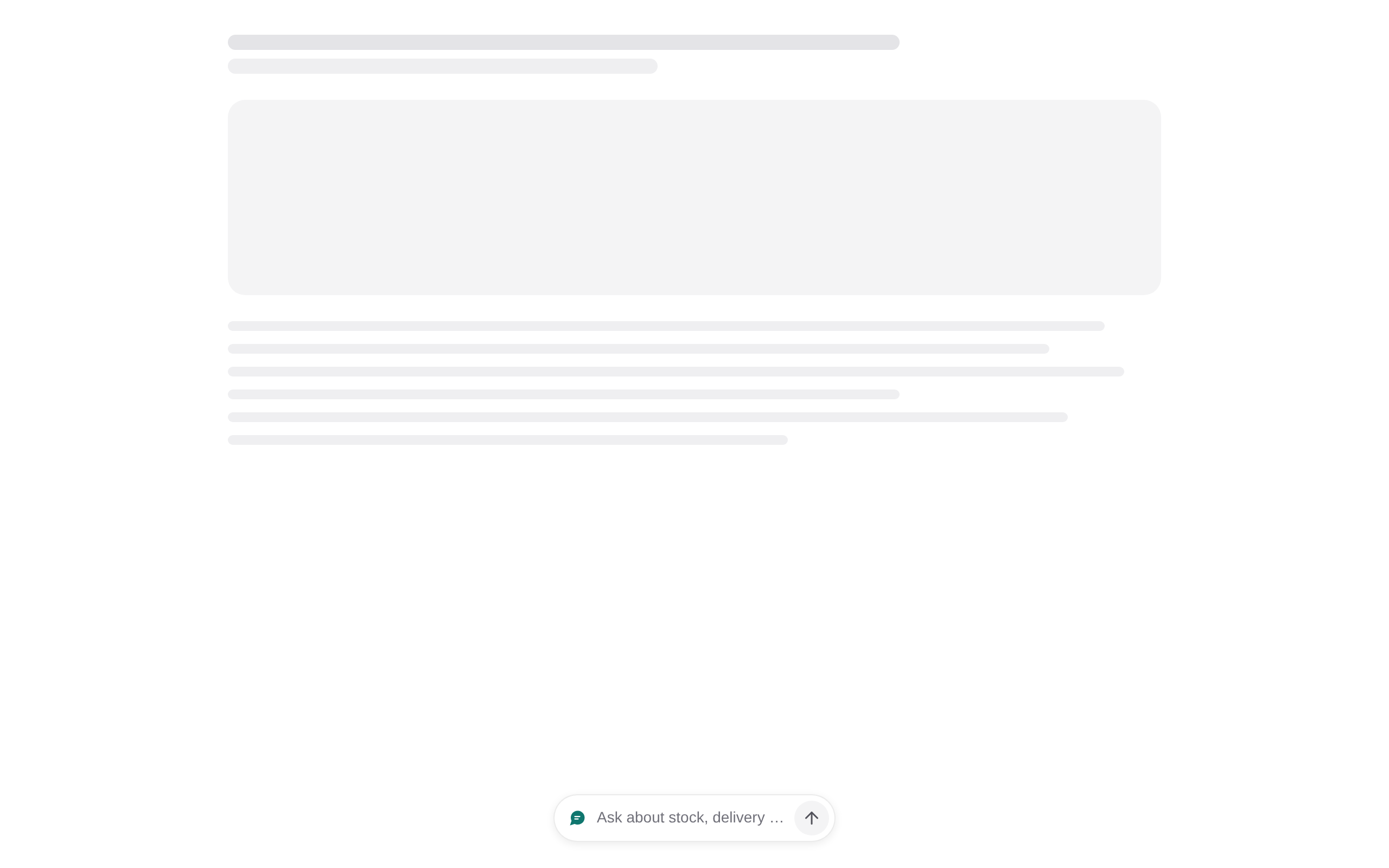
The two that carry words take your own wording — the label on the pill, or the prompt inside the bar. Leave it empty and the widget uses its own.
The launcher travels in the embed snippet, like the colors and the corner, so copy the snippet again after changing it. See Re-pasting after a change.
Widget mode
- Visible (default) — the launcher sits in the corner of every page.
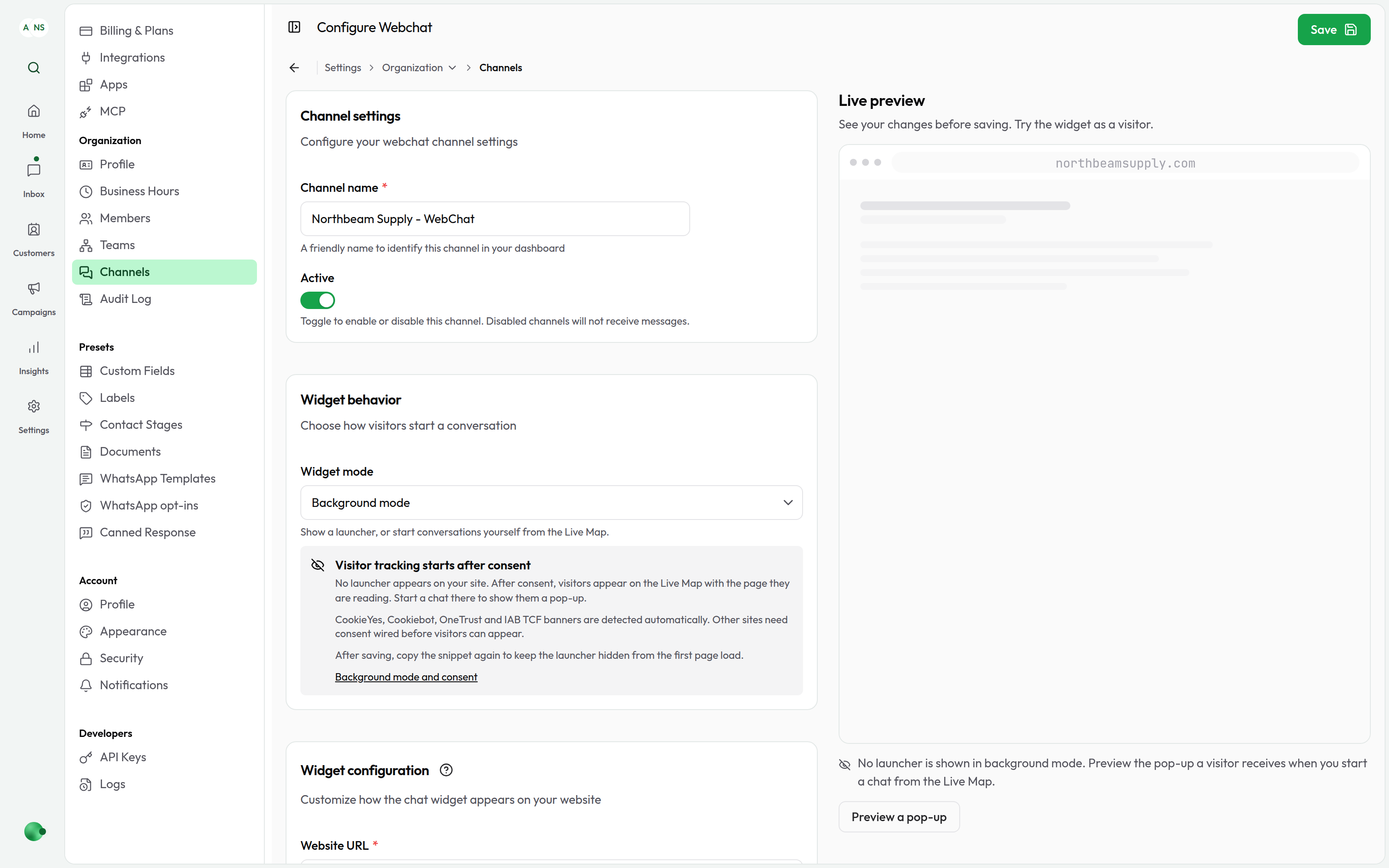
- Background — nothing shows on your site. The widget still loads on every page, so each visitor appears on the Live Map with the page they are reading, and you start a chat on a visitor's screen from there. A reply to a conversation the visitor already has also brings the launcher back for them, so nobody is sent a message they cannot see.
Background mode is for a site that wants to see who is reading it and reach out when it matters, without a permanent chat button. The live preview shows an empty page in this mode — that is what a visitor sees — with a Preview a pop-up button that shows what opening the chat from the Live Map looks like from their side.
Consent
An invisible widget that reports which page a visitor is on is tracking, and
in the EU, the UK and several US states that needs the visitor's agreement
first. So in background mode the widget waits: it opens no connection for
the visitor and stores nothing about them until it knows the visitor agreed.
What loads before that is the widget's own code and the channel's settings,
fetched the way any script is, with no visitor id attached. The snippet
carries requireConsent: true to make that visible.
If your site runs a cookie banner, there is nothing to wire. The widget finds it, reads the visitor's current choice, and follows any change — on a banner that fires its event before the widget has loaded, on a returning visitor whose banner never fires at all, and on a banner a tag manager injects a few seconds later. It looks at the banner's analytics category, since that is where "which page is this visitor on" belongs:
| Banner | What counts as consent | Set consentCategory to use another |
|---|---|---|
| CookieYes | analytics | a default category name, e.g. "functional" |
| Cookiebot | statistics | "preferences" or "marketing" |
| OneTrust | C0002 (performance) | another group id, e.g. "C0003" |
| Any IAB TCF 2.2 banner (Didomi, Sourcepoint, Quantcast, Usercentrics…) | purposes 1 and 8 | a list of purpose ids, e.g. [1, 7, 8] |
The choice is read every time a page loads, and a visitor who withdraws consent in the banner is disconnected at once, even mid-chat: the panel closes, they leave the Live Map, and the id the visit was using is forgotten. A conversation the visitor started earlier is kept — withdrawing tracking consent is not a request to delete their chat, and opening the chat again finds it.
To check what the widget is doing, run this in the browser console on your site:
CloodotWebchat.consentStatus()
// → { status: "waiting" | "granted" | "not-required", platform: "cookieyes" | … | null }
Another banner, or your own. Give the widget a way to read and follow it:
CloodotWebchat.init({
  channelId: "…",
  mode: "background",
  consent: {
    read: () => myBanner.allows("analytics"),        // true, false, or null while undecided
    subscribe: (onChange) => myBanner.onChange(() => onChange(myBanner.allows("analytics"))),
  },
})
Or set consent: "manual" and call CloodotWebchat.grantConsent() on every
page load where consent stands, and CloodotWebchat.revokeConsent() when it is
withdrawn. The widget deliberately does not remember a grant between page
loads; your banner is the one source of truth.
No banner needed. If consent is handled some other way — a site outside
those jurisdictions, or a page a visitor only reaches after agreeing — set
requireConsent: false in the snippet and the widget connects on load as a
visible one does.
A browser sending the Global Privacy Control
signal is treated the same way as consent not given, for a background widget
that would otherwise connect on load. An explicit grantConsent() still
applies.
A visible widget does not wait by default: a launcher the visitor can see and
choose to open is the service they are asking for. It accepts the same
requireConsent: true if you would rather it waited too; it then connects
either when consent is granted or when the visitor opens the chat.
What the widget collects
So you can describe it in your privacy notice. The same for both modes:
- A visitor id. A random id for the visit, shared by the tabs of your site the visitor has open and forgotten thirty minutes after their last page. It is made permanent only when the visitor opens the chat, gets a reply or sends a message, so that their next visit finds the same thread. Someone who only browses leaves no permanent id.
- The page they are on. URL, title and description, sent on load and on
every navigation, with credentials, fragments and anything that looks like
a token, an email address or a phone number stripped before it leaves the
browser. Off with
sharePageContext: falsein the snippet. - A coarse location, derived from their connection: country, region and city, and coordinates rounded to about ten kilometres.
- Where they came from. UTM tags and the referring site's hostname. The ad-click id itself is never collected, only which network it came from.
For a visitor who never starts a conversation, all of this lives for the visit only: it is held in memory on our side, expires within 25 minutes of their last activity, and is removed the moment they leave. Nothing is written to a database. A visitor who starts a conversation has the page they were on, their location and their campaign kept with that conversation.
Wording
- Greeting — The first thing a visitor reads when the widget opens. Leave it empty and the widget uses its own default.
- Composer placeholder — The grey prompt inside the message box. Also falls back to a default when empty.
Both fields travel in the embed snippet, so changing either means pasting the snippet again — see Re-pasting after a change.
Contact collection
Choose what to ask visitors before they chat:
- Email only — Collect their email address
- Phone only — Collect their phone number
- Email or phone — Let visitors choose either
Whatever they enter is added to their Cloodot contact record.
Chat avatars
Pick up to four teammates whose faces greet visitors above the widget's greeting, or leave it empty to show whoever is available.
Other settings
- Company name — Shown in the widget header so visitors know who they're chatting with
- Website URL — The site where the widget runs
Re-pasting after a change
Four settings reach a widget that is already on your site, because the widget asks for them each time it loads: contact collection, chat avatars, widget mode and color scheme. Change any of them and your site needs no edit.
The color scheme is also written into the snippet, like the brand color, so a dark widget's very first paint is dark rather than a white panel that turns dark a moment later. A snippet that carries a scheme keeps it — the line in the snippet is your page's own choice — so after switching schemes, copy the snippet again and replace the old one.
Widget mode is also written into the snippet, as the answer to use until the dashboard's arrives. On a visitor's first page the widget asks the dashboard which mode the channel is in before it draws or connects anything, and asks again once that answer is five minutes old, so a switch made in the dashboard reaches every visitor within minutes. Paste the snippet again after switching to background mode all the same: it is what a page falls back on when the question goes unanswered.
Everything else — company name, greeting, composer placeholder, brand color, chat background and widget position — travels in the embed snippet, which is why the snippet at the bottom of the settings page carries all of them. After changing one of those, copy the snippet again and replace the old one on your site.
Controlling the widget from your page
The snippet leaves a CloodotWebchat object on your page. Each call below acts
on the widget the snippet started, so a page with one widget passes nothing.
| Call | What it does |
|---|---|
CloodotWebchat.open() | Opens the chat panel, the way clicking the launcher does. |
CloodotWebchat.close() | Closes it again. |
CloodotWebchat.toggle() | Opens it if closed, closes it if open. |
CloodotWebchat.isOpen() | true while the panel is open. |
CloodotWebchat.popup() | Surfaces the chat the way the Live Map's Start a chat on their screen does: the launcher comes back and the greeting arrives as a message card with a box to answer in. It never opens the panel by itself and never takes the visitor's cursor. |
CloodotWebchat.hide() | Takes the launcher off this page — a checkout step, a full-screen player. |
CloodotWebchat.show() | Puts it back. |
CloodotWebchat.grantConsent() | The visitor agreed to being tracked — see Consent. |
CloodotWebchat.revokeConsent() | They withdrew. The widget disconnects and forgets the visit. |
CloodotWebchat.consentStatus() | Where the gate stands, for checking an integration. |
CloodotWebchat.destroyAll() | Removes the widget from the page. For a single-page app unmounting the view that started it. |
Two things worth knowing:
hide()is not background mode. It takes the launcher off the page in front of you and nothing else: the widget stays connected and the visitor stays on the Live Map. Background mode is a channel setting, and it is what decides whether the widget reports anything at all.- The consent gate holds back the tracking, not the chat. A visitor who
opens the chat gets it, and so does a page that calls
open()orpopup()— that is a conversation somebody asked for. What waits is the reporting the visitor did not ask for.
Managing WebChat conversations
View WebChat messages
WebChat conversations land in your unified inbox. You can:
- Filter by channel to see only WebChat messages
- View visitor info and the page they were on when they started the chat
- Access the full conversation history
Reply to visitors
- Open your Cloodot inbox
- Find the WebChat conversation
- Type your reply and send — it appears in the visitor's chat widget
Running WebChat on multiple sites
- Each site gets its own widget configuration
- All conversations land in the same inbox
- Filter by website to see where each conversation started
Tips
Widget placement
- Bottom-right is the most familiar and works for most sites
- Bottom-left suits right-to-left layouts
- Top positions are uncommon but useful for specific layouts
- Avoid covering important content
Response times
- Reply quickly — WebChat visitors expect fast responses
- Set expectations — Use auto-responses to signal when you'll reply
- Share hours — Tell visitors when you're available
Welcome messages
- Be warm — A friendly greeting helps
- Set expectations — Mention typical response times
- Add value — Offer something useful upfront
Troubleshooting
Nobody appears on the Live Map
On a background channel the widget reports nothing until it knows the visitor agreed, so an empty map is usually the consent gate doing its job. Open one of your own pages and run this in the browser console:
CloodotWebchat.consentStatus()"waiting"with a platform name — the banner was found and this visitor has not accepted its analytics category. Accept it and they appear."waiting"withplatform: null— no banner was found. Name the category, wire your own banner, or setrequireConsent: falseif consent is handled elsewhere. Consent has all three."granted"or"not-required"— consent is not what is holding them back. Check that the channel is still connected, that the snippet is on the pages you are watching, and that no ad blocker is stopping the widget.
A browser sending Global Privacy Control counts as consent not given, so a visitor who has turned that on will not appear.
The launcher still shows after switching to background mode
A browser follows the change within about five minutes, and the visitor's next page is silent. Two cases keep the launcher on screen longer, both deliberate:
- A visitor who has been sent a pop-up, or who has the chat open, keeps it for the rest of that visit. A message with no way to answer it is worse than a button.
- A page whose snippet still says
mode: "visible"shows the launcher for the moment before the widget has asked. Copy the snippet again to settle that first page too.
Widget isn't showing up
- Confirm the embed code is placed just before
</body> - Confirm JavaScript is allowed on your site
- Clear your browser cache and refresh
- Check the browser console for JavaScript errors
- Confirm nothing is blocking the Cloodot domain
Messages aren't sending
- Confirm the embed code is complete and correct
- Check your internet connection
- Confirm the WebChat channel is still connected in Cloodot
- Look for errors in the browser console
- Disconnect and reconnect the WebChat channel
Widget looks wrong
- Clear your browser cache
- Re-check the customization settings in Cloodot
- Check whether your site's CSS is interfering
- Re-embed the widget code
You're not receiving messages
- Confirm the WebChat channel is connected
- Check your notification settings
- Confirm you have the right permissions
- Refresh your Cloodot dashboard
Next steps
- Customize your widget appearance
- Configure business hours
- Set up automated responses
- Invite team members
Need help? See the troubleshooting guide or contact support.