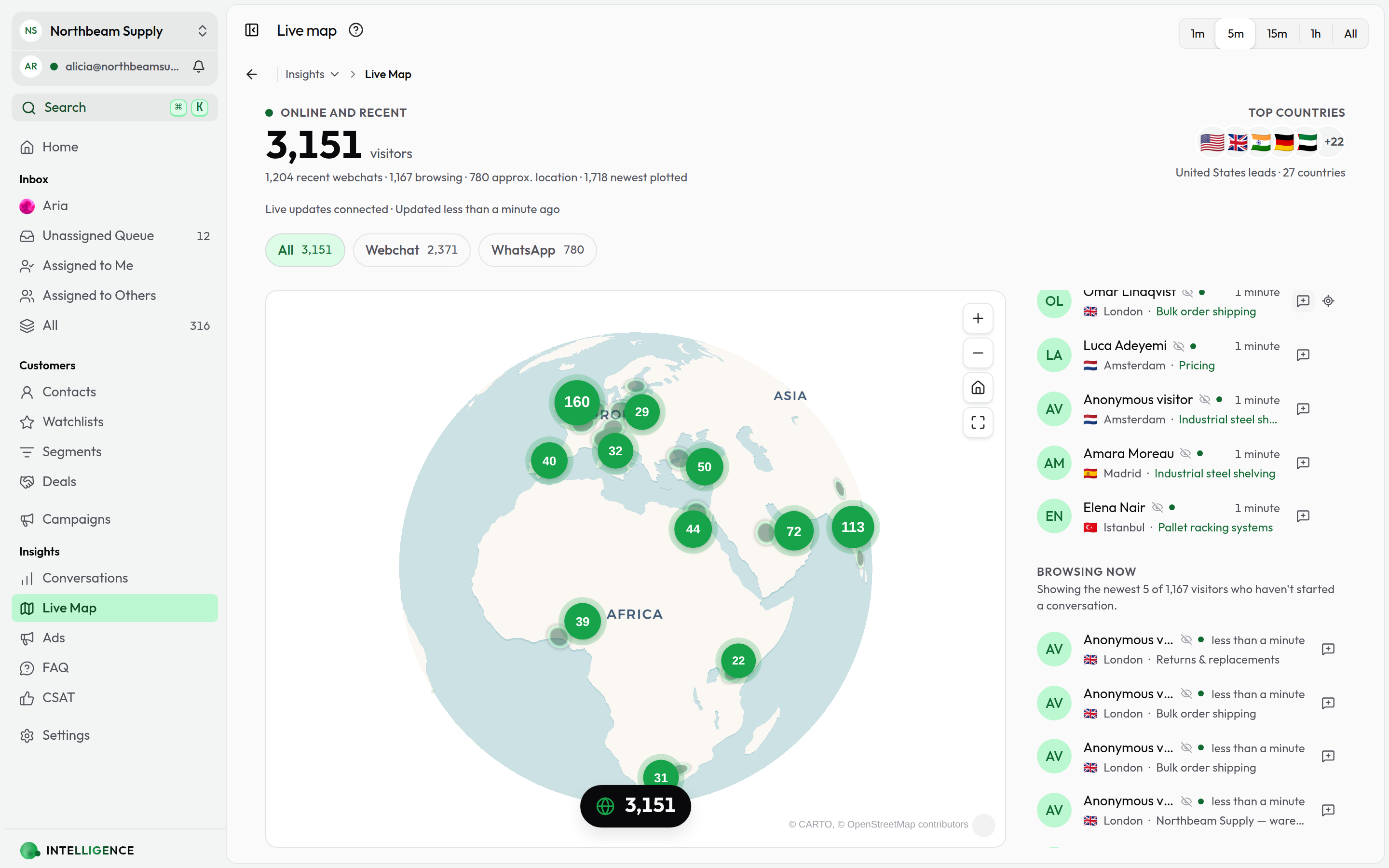
Live Map
See who is on your site right now, where they are and what they are reading — and open a chat on their screen.
Live Map plots your visitors on a globe as they arrive: the people in a conversation on any channel, and — for WebChat — everyone who has the widget loaded on their page, whether they have said anything or not.
Open it from Insights → Live Map.
What the map shows
- The headline count is everyone active in the selected window, split into people in a chat and people browsing. Use the Active window control in the page header to widen or narrow it; the channel chips beneath the count scope every number on the page to WebChat or WhatsApp.
- Country bubbles size with the number of visitors there. Click one to fly to it; the flags in the header band do the same.
- Live pages ranks the pages your visitors are on right now — where they are, not where they came in.
- Recent activity lists the latest conversations. Click one to open it in the inbox.
- Browsing now lists the newest visitors who have the widget loaded and have not started a conversation. This is the list you reach out from — see below.
WebChat visitors are located by IP; WhatsApp contacts by the country code of their phone number. The page refreshes every 30 seconds.
Start a chat on a visitor's screen
Rows under Browsing now carry a Start a chat on their screen control at their trailing edge (it appears when you point at the row), and so do the rows under Recent activity for anyone still on the site. Someone who already has a conversation is reachable the same way — which matters most on a background channel, where their page draws no launcher and an unanswered message sits in a chat they cannot open.
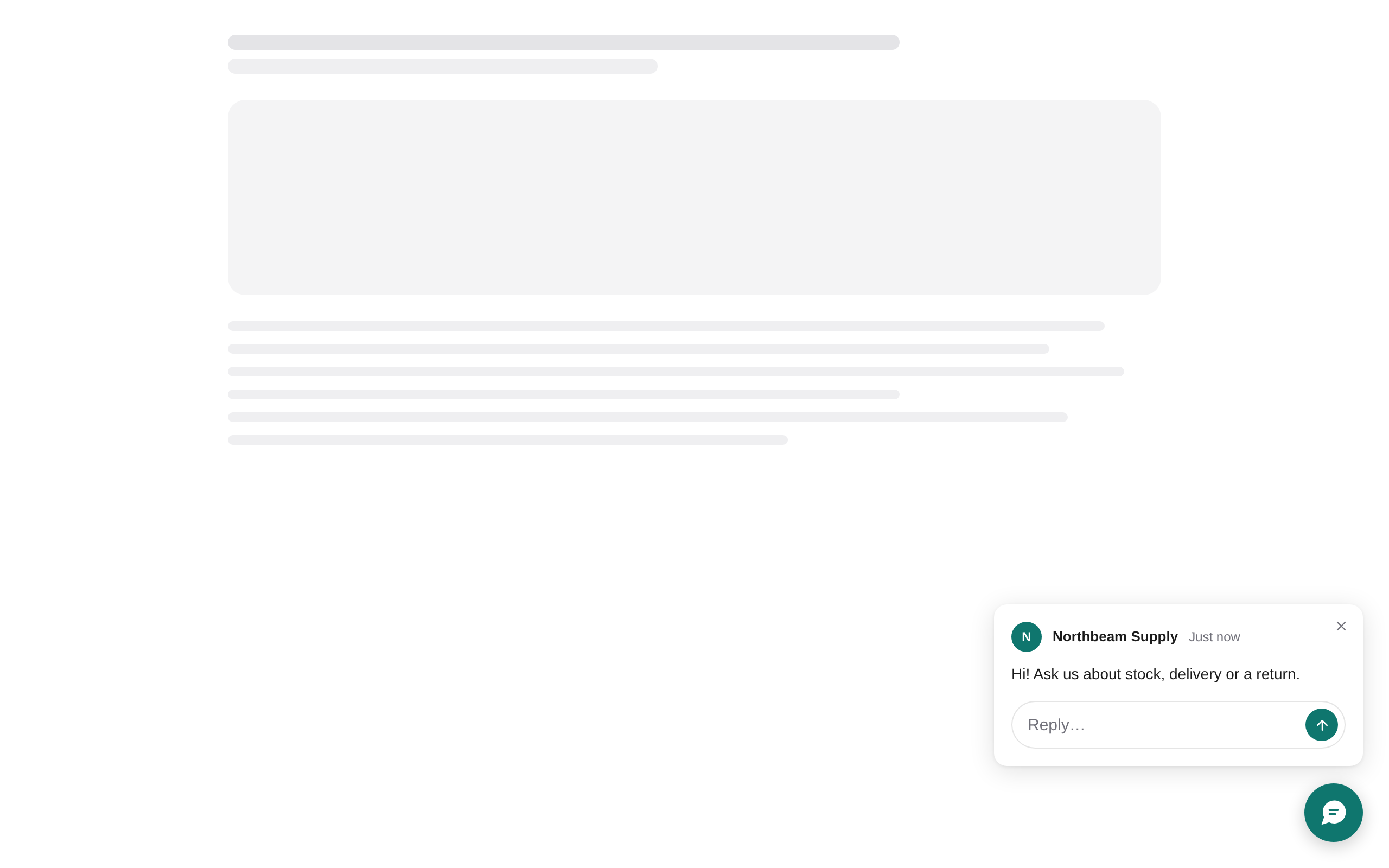
Click it and your greeting arrives on the visitor's page as a message: who it is from, what you said, and a box to answer in. Nothing covers what they are reading and nothing takes their cursor, so a visitor half-way through your checkout is not interrupted — the same on a laptop and on a phone.
A crossed-out eye beside a name means exactly that: no launcher on their page, so they cannot start the conversation themselves. It is the difference between a visitor ignoring your chat and one who has never been offered it.
Answering opens the chat with what they have typed already in the composer. Whatever they write lands in your inbox as a new WebChat conversation. A visitor with several tabs of your site open is one row, and the message reaches every one of them. If the visitor closed the page in the seconds since the list was last refreshed, the map tells you they have left rather than sending into nothing.
Background mode
A WebChat channel can run in background mode: the widget loads on every page but draws no launcher and shows the visitor nothing. Visitors still appear here with the page they are reading, and starting a chat on their screen is how a conversation begins. Switch it on under the channel's settings — see Widget mode.
A background widget waits for the visitor's consent before it reports anything. It follows a CookieYes, Cookiebot, OneTrust or IAB TCF banner on its own; a site with none of those, and no other wiring, shows nobody here. Consent has the details.
So when Browsing now stays empty on a background channel, the gate is the
first thing to check: run CloodotWebchat.consentStatus() in the browser
console on your own site, and
Nobody appears on the Live Map
says what each answer means.
Browsing visitors appear while the widget is loaded on their page and disappear when they leave. Only visitors who start a conversation are stored.