Watchlists
Monitor important groups of contacts in one live table.
Watchlists monitor selected contact segments together in a single live table. Pick the segments you care about — new complaints, VIP customers, overdue follow-ups, sales leads — and every matching contact appears in one list, tagged with the segment it came from.
Contacts appear and disappear automatically as they start or stop matching a segment's rules.
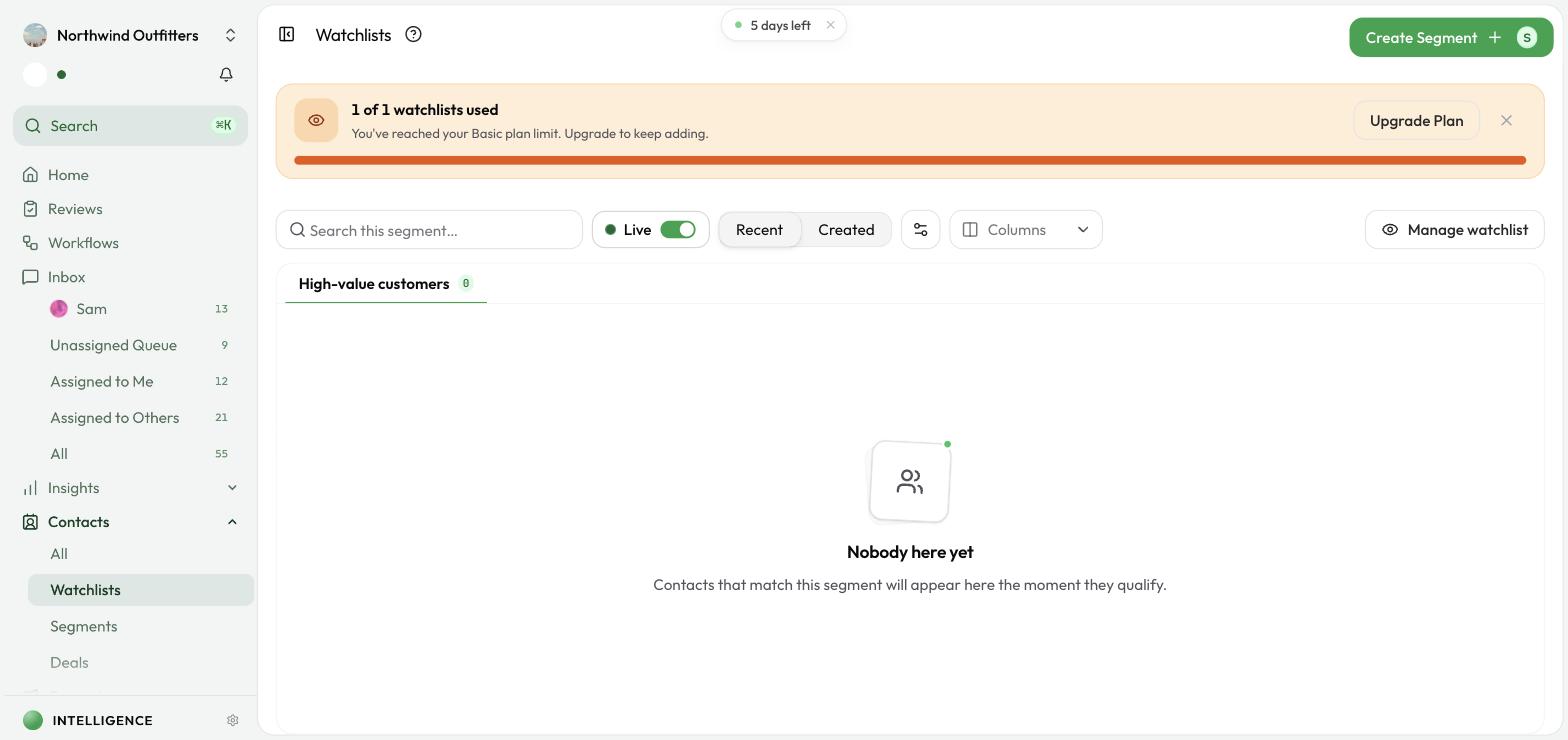
Opening Watchlists
- Go to Customers in the left sidebar.
- Click Watchlists.
You'll see a toolbar with a segment picker and a single table beneath it.
Picking segments to watch
Use Manage watchlist in the toolbar to choose which segments to monitor. Adding a segment pins it to the watchlist; removing it stops monitoring. Only the segments you add appear here — create one under Segments first, then add it to your watchlist.
The view updates as soon as you change the selection, and your choice is remembered.
Watchlist limits
Live monitoring refreshes continuously, so each plan includes a set number of watchlists:
| Plan | Watchlists |
|---|---|
| Basic | 1 |
| Starter | 2 |
| Growth | 5 |
| Enterprise | Unlimited |
A banner at the top of the page shows how many you're using. When you hit your plan's limit, remove a segment to free a slot, or Upgrade Plan to monitor more at once. (Your total number of segments is a separate, larger limit — keep as many segments as you need and choose which few to monitor live.)
How the table works
- Every selected segment's contacts appear together in one table.
- The Segment column shows which segment each contact matched, so a mixed list stays easy to read.
- A contact that matches more than one selected segment appears once per segment — one row each — so you can see every list it belongs to.
- The count badge in the header shows how many contacts are in view across all selected segments.
Watchlists are not pipeline stages. You cannot move a contact between segments to change its membership. Edit the underlying segment rules when you want to change which contacts appear.
Change a contact's lifecycle stage in place from the Stage column. Contacts active in the last minute are highlighted so new activity is easy to spot. Click a row to open the Contact Details drawer, or use the row's actions menu to open details or copy a contact's information.
Searching across segments
Use the search box to filter across all selected segments at once. The header shows how many contacts match, and the table lists them. Clear the search to return to the full view.
Live mode
- When Live is on, the table refreshes periodically, shows how many contacts are active right now, and may play a subtle chime when a new matching contact arrives.
- When Live is off, the view stays static until you refresh it or change a selection.
Sorting and display
- Use the Recent / Created toggle to sort by most recent session activity or by when each contact was created.
- Use Display Options to choose what each row shows: email, phone, custom fields, last interaction, and labels.
Cloodot remembers your selected segments, sort order, and display settings.
Related guides
- Segments: Define who appears in a watchlist
- Deals: Move contacts through your pipeline on a board
- All Contacts: Search and manage every contact
- Contacts Overview: Understand the available contact views