Collections
Curate product and service catalogs your AI can showcase inside conversations.
Collections put your products, services, or any curated content right inside customer conversations. When someone asks "What do you sell?" or "Show me your options," your AI agent can present a visual carousel of items — with images, descriptions, and action buttons.
Think of a collection as a mini storefront inside your chat. Customers browse, tap, and take action without ever leaving the conversation.
What collections give you
- Visual product cards in chat — Customers see items as carousels, not walls of text
- AI-driven selling — The agent finds and presents the right items based on what customers ask for
- One place to manage catalogs — Everything lives in the Cloodot dashboard
- Bulk imports — Upload a CSV to add hundreds of items at once
- Shopify integration — When connected, your AI agent references Shopify product data alongside your collections
Opening Collections
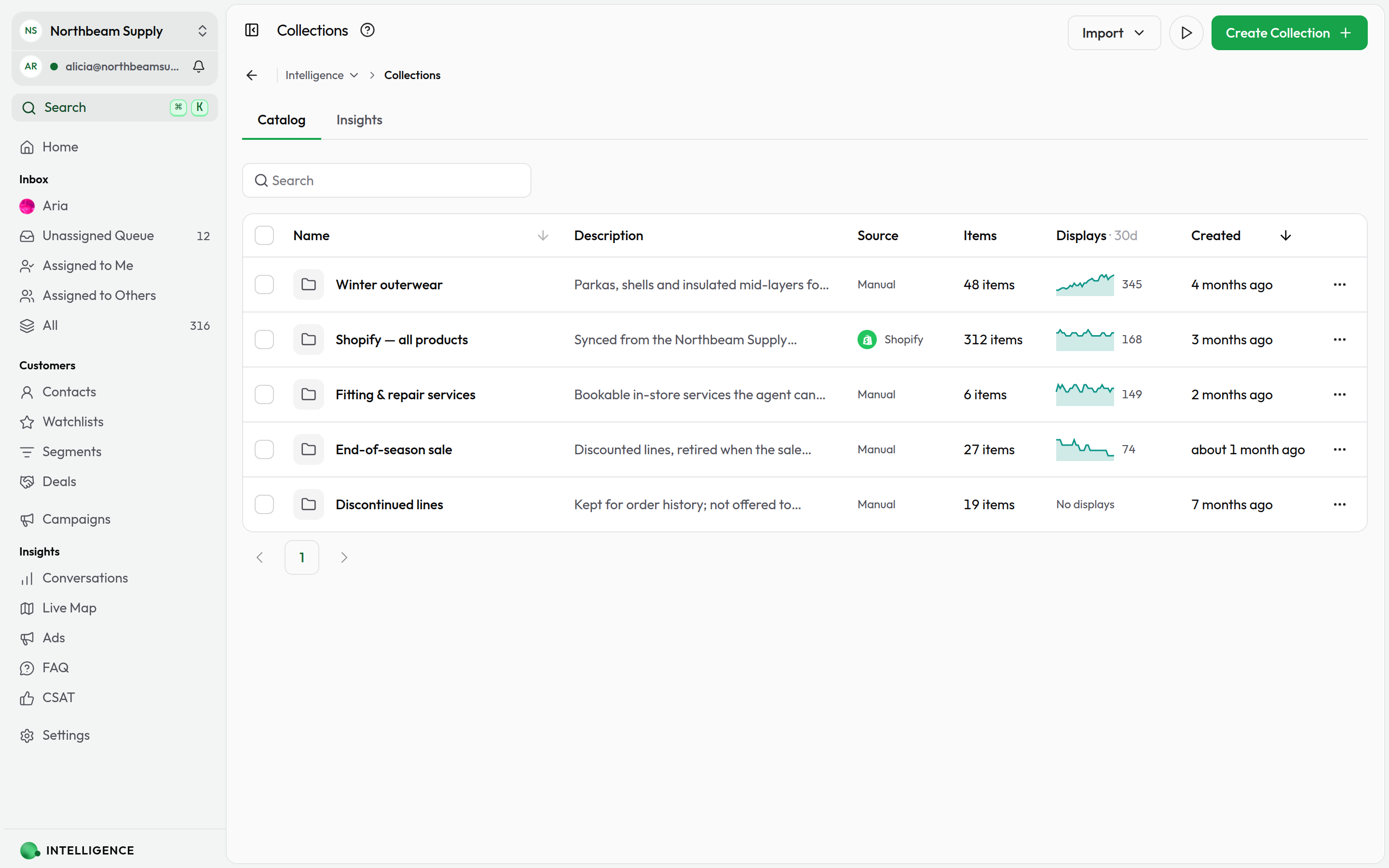
Go to Intelligence → Collections from your dashboard. The Catalog tab lists all your collections — what is in each one, where it came from, and how often the agent has shown it — and is where you create new ones. The Insights tab beside it reports what the agent actually did with them.
Creating a collection
- Click Create Collection.
- Give it a name (e.g., "Summer Sale" or "Our Services").
- Add an optional description so your team knows what it's for.
- Save it.
That's it — your collection is ready for items.
Collection names must be unique within your workspace. Pick something descriptive so your team can find it.
Adding items to a collection
Each item in a collection can have:
- Title — The name of the product or service (required)
- Subtitle — A short description, price, or details
- Image — A photo of the product or service
- Buttons — Up to 2 action buttons (like "View Details" or "Buy Now")
Adding items one by one
- Open the collection.
- Click Add Item.
- Fill in the title, subtitle, and other details.
- Add buttons if customers should be able to take action.
- Save.
Importing items from a CSV
Got a spreadsheet of products? Import them in one go.
- Open the collection and click Import.
- Upload your CSV (up to 10 MB, up to 1,000 rows).
- Map your columns — title, subtitle, image URL, and so on.
- Review the mapping and start the import.
- Watch the progress as items are added.
Your CSV can include columns for title, subtitle, image URL, media type, and up to 2 buttons (each with text, type, and value).
If your CSV contains items already in the collection, choose whether to skip duplicates or update them with the new data.
How your AI agent uses collections
When a customer asks something like:
- "What phones do you have?"
- "Show me your dessert menu"
- "Do you have anything under $50?"
The agent searches your collections, finds the most relevant items, and presents them as a visual carousel in the conversation. Customers can scroll through items, see images and descriptions, and tap buttons to take action.
Search is semantic — it understands meaning, not just keywords. So "affordable laptops" finds items even if the word "affordable" doesn't appear in your data.
Collections work automatically with every AI Persona. No extra configuration needed — if you have collections, your agent can use them.
Handing an item to a skill set
A collection knows what you sell. It does not know what is on the shelf this minute, and it cannot take a payment — those need a live call to the system that owns them, which is what a skill set does.
The two join up on their own. Every item the agent shows carries a reference — the product's ID in whatever system feeds the collection — and the agent passes that reference to the skill it calls next. So a conversation runs:
- "Show me running shoes" → Collections finds them and shows the carousel
- "Is the second one in size 9?" → the Shopify skill set checks the store live
- "Add it to my cart" → the same skill set builds the cart and returns a checkout link
The customer never repeats a product name, and you never maintain a second catalogue inside a skill. This is why first-party skill sets don't search products: that's this feature's job, and doing it twice would give one question two answers.
Item details
Images
Add product photos to make items stand out. Provide an image URL or upload a file. Supported formats: PNG, JPEG, or WebP, up to 5 MB.
A good image is the difference between a customer scrolling past and stopping to look.
Buttons
Each item can have up to 2 buttons. Two types:
- URL — Opens a link (great for "View Product" or "Learn More")
- Postback — Sends a message back to the conversation (useful for "I'm interested" or "Add to cart")
Managing collections
Edit a collection
Click any collection to change its name or description. You can also add, edit, or remove items here.
Edit items
Click any item to update its title, subtitle, image, or buttons. Changing the title or subtitle re-indexes the item, so your agent can find it with the updated text.
Hide an item from AI search
Some items belong in your collection but shouldn't be offered to customers — a discontinued line you still have records for, something out of stock, an in-store-only product, or a test item.
Switch AI search off on the item's row to hide it. In card view, use the item's ⋯ menu → Hide from AI search.
A hidden item:
- Won't be found or offered by your agent — it disappears from carousels and from the answers the agent writes.
- Stays in the collection — it's still listed, still editable, and you can still send it yourself or include it in a template carousel.
- Shows as "Excluded" in the Status column, so it's clear the item isn't waiting on indexing.
To hide several at once, select the items and choose Hide from AI search in the action bar. Switching an item back on re-indexes it, so give it a moment before it starts appearing in searches again.
Hiding is not a fix for an item the agent picks at the wrong moment — that usually means the description needs to be more specific. Hide items you don't want sold; rewrite items that aren't matching well.
See what the agent is actually showing
The Displays column on the Catalog tab counts how many times the agent put an item from each collection in front of a customer over the last 30 days, with a sparkline of the daily shape behind it. Open a collection and every item row carries the same reading over the last 14 days.
For the full picture — volume over time, which collections carry the work, and how much of your catalog is used at all — switch to the Insights tab. Managing a catalog and measuring it are the same screen; see Collection Insights.
Delete items or collections
You can delete individual items or entire collections. Deleting a collection removes all its items too.
Deleting is permanent. Once a collection or item is gone, your agent can no longer show it to customers.
Plan limits
The number of collections you can create depends on your plan:
| Plan | Collections |
|---|---|
| Basic | 1 |
| Starter | 3 |
| Growth | 10 |
There's no limit on the number of items within each collection — add as many as you need.
Tips for great collections
Write clear titles
"iPhone 15 Pro Max 256GB" beats "Product #4829." Customers see titles, and your agent uses them to match search queries.
Add descriptive subtitles
Include price, size, color, or availability. Subtitles help customers decide and help your agent find the right items.
Use quality images
A clear product photo builds trust and makes your carousel look professional. Make sure image URLs are publicly accessible and load quickly.
Keep collections focused
"Winter Jackets" beats "All Products." Smaller, well-organized collections help your agent serve up more relevant results.
Update regularly
Remove discontinued items, update prices, and add new products. Stale collections frustrate customers.
Troubleshooting
Agent isn't showing collection items
Make sure you have at least one collection with items. Then:
- Check that items have titles (required for search indexing)
- Give newly added items a moment to be indexed — it's not instant
- Check the item's AI search switch — an item marked Excluded is hidden on purpose
Images aren't displaying
Check that the image is in a supported format. Then:
- Confirm it's a PNG, JPEG, or WebP file (up to 5 MB)
- Make sure the image is publicly accessible (not behind a login)
CSV import issues
Check that your file is under 10 MB and has fewer than 1,000 rows. Then:
- Make sure it's a valid CSV with column headers
- Verify every row has a title — it's the only required field
Related
- Knowledge Base — Teach your agent about your business with text, PDFs, and web links
- AI Agent — Configure how the agent uses collections and other tools
- Skill Sets — Add custom abilities
- Integrations — Connect Shopify and other services
- Collection Insights — See how much of your catalog the agent actually uses
What's next?
- Create your first collection and add a few items.
- Test it in the playground — ask the agent about the products you added.
- Build your Knowledge Base to complement collections with policies and FAQs.
- Connect Shopify to give the agent access to your store's product data.
Ready to teach your agent more? Build your Knowledge Base.